> ## Documentation Index
> Fetch the complete documentation index at: https://docs.getcollate.io/llms.txt
> Use this file to discover all available pages before exploring further.
# Profiler Configuration
> Set the default profiler metrics computed per data type, and control whether sample data is stored and readable platform-wide.
# Profiler Configuration
Profiler Configuration sets the platform-wide defaults the profiler applies before any individual profiler workflow runs:
* Which metrics it computes for each column data type
* Whether it stores or reads sample data
These defaults apply to every profiler workflow unless a workflow overrides them. For more information about running the profiler itself, see [Profiler Workflow](/ai-2-0/how-to-guides/data-quality-observability/profiler/profiler-workflow).
**Purpose and Benefits**
* **Purpose**: Set which profiler metrics run by default, per data type, and whether sample data is stored or read.
* **Benefits**: Gives every new profiler workflow across every team a consistent, already-tuned baseline instead of reconfiguring the same metrics from scratch.
## How to Access
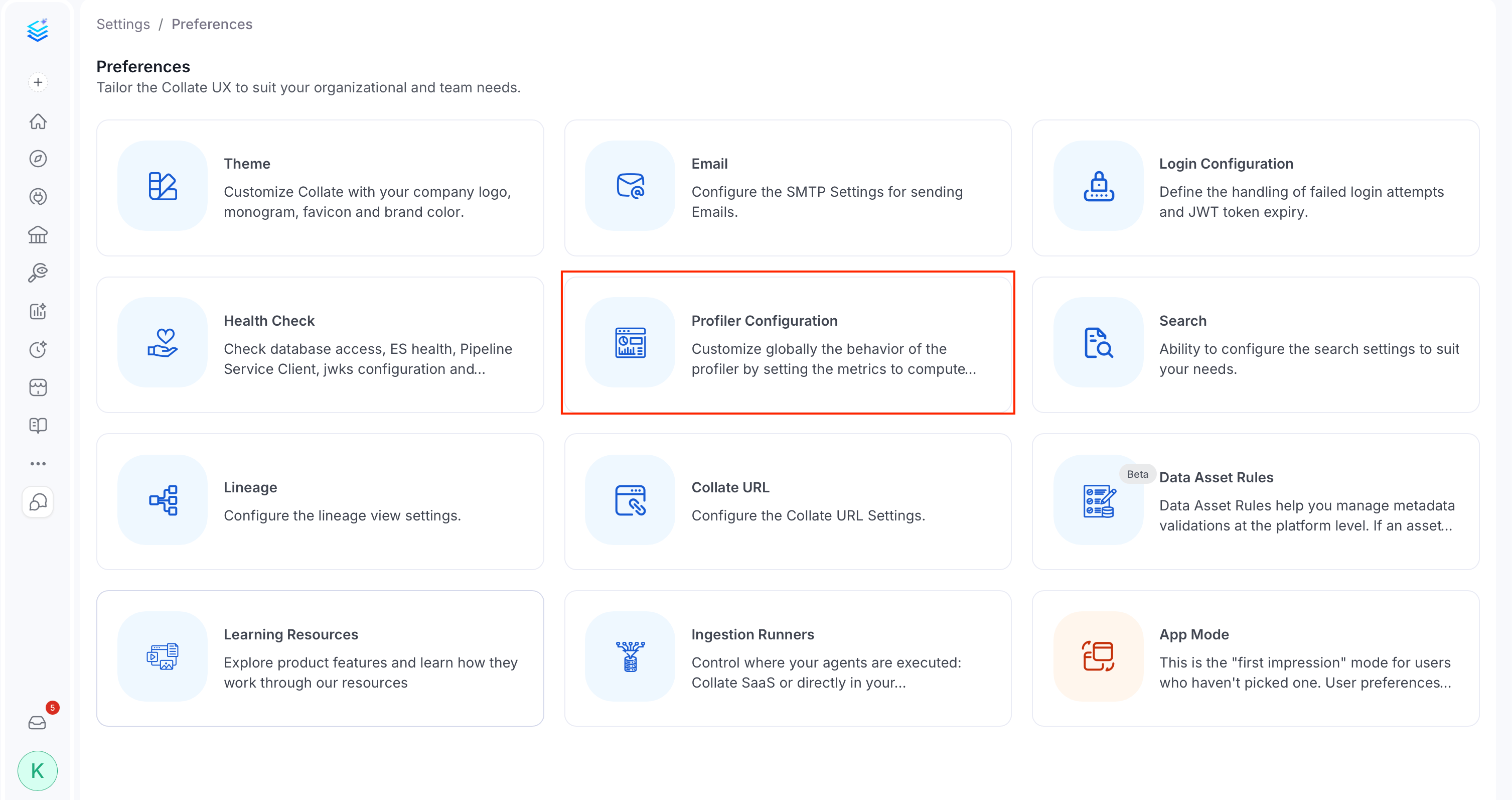
Click the **Profile** icon and navigate to **Settings** > **Preferences** > **Profiler Configuration**.
 ## Metric Configuration
By default, the profiler computes every available metric for every column. Metric Configuration lets you turn specific metrics off per data type, which is useful when:
* A metric doesn't make sense for that type, such as computing a mean on a string column
* You want to keep profiling fast on very wide tables by skipping metrics your team doesn't act on
Add a row per data type to control which metrics the profiler computes for columns of that type:
1. Click **Add Field**.
2. Choose a **Data Type**, for example `INT`, `STRING`, or `TIMESTAMP`. Each data type can only be configured once.
3. Choose which **Metric Type(s)** to disable for that data type, or leave it on **All** to disable every metric for that type.
4. Use the **Disable** toggle to turn the whole row off without deleting it.
## Metric Configuration
By default, the profiler computes every available metric for every column. Metric Configuration lets you turn specific metrics off per data type, which is useful when:
* A metric doesn't make sense for that type, such as computing a mean on a string column
* You want to keep profiling fast on very wide tables by skipping metrics your team doesn't act on
Add a row per data type to control which metrics the profiler computes for columns of that type:
1. Click **Add Field**.
2. Choose a **Data Type**, for example `INT`, `STRING`, or `TIMESTAMP`. Each data type can only be configured once.
3. Choose which **Metric Type(s)** to disable for that data type, or leave it on **All** to disable every metric for that type.
4. Use the **Disable** toggle to turn the whole row off without deleting it.
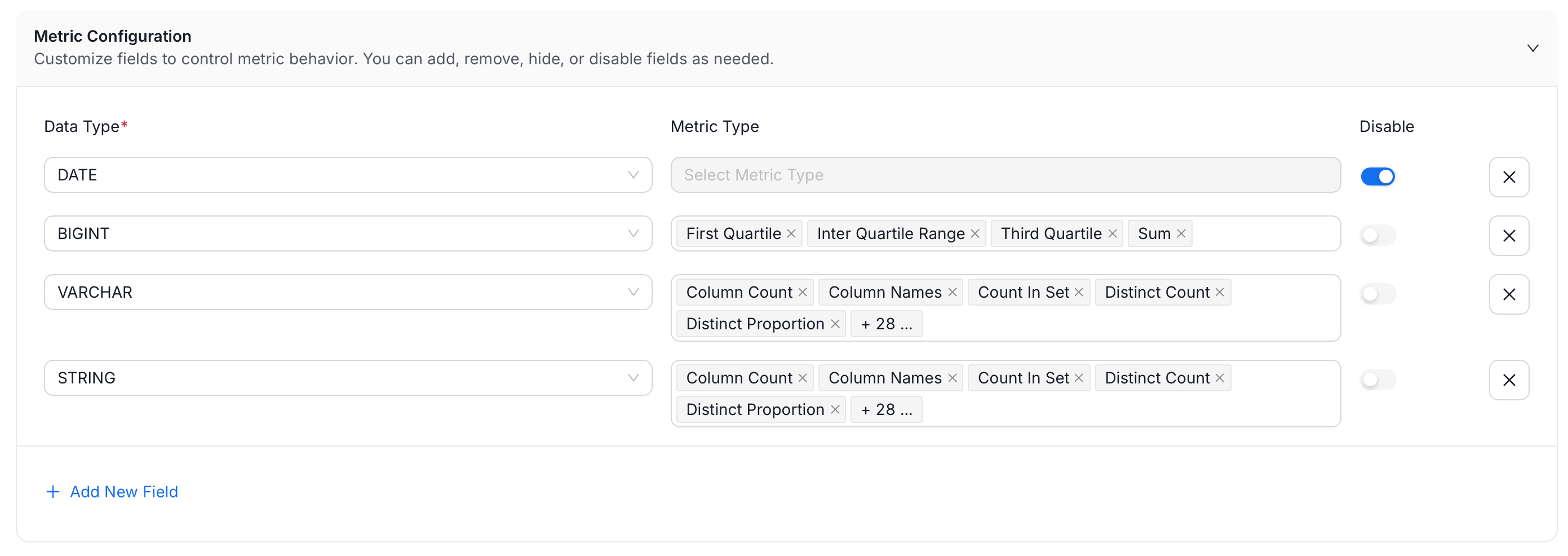 Click the **X** button next to a row to remove it.
## Sample Data Ingestion Configuration
Sample data lets users preview real rows from a table directly in Collate, which is convenient for spotting data quality issues at a glance, but it also means row-level data is brought outside the source system.
Click the **X** button next to a row to remove it.
## Sample Data Ingestion Configuration
Sample data lets users preview real rows from a table directly in Collate, which is convenient for spotting data quality issues at a glance, but it also means row-level data is brought outside the source system.
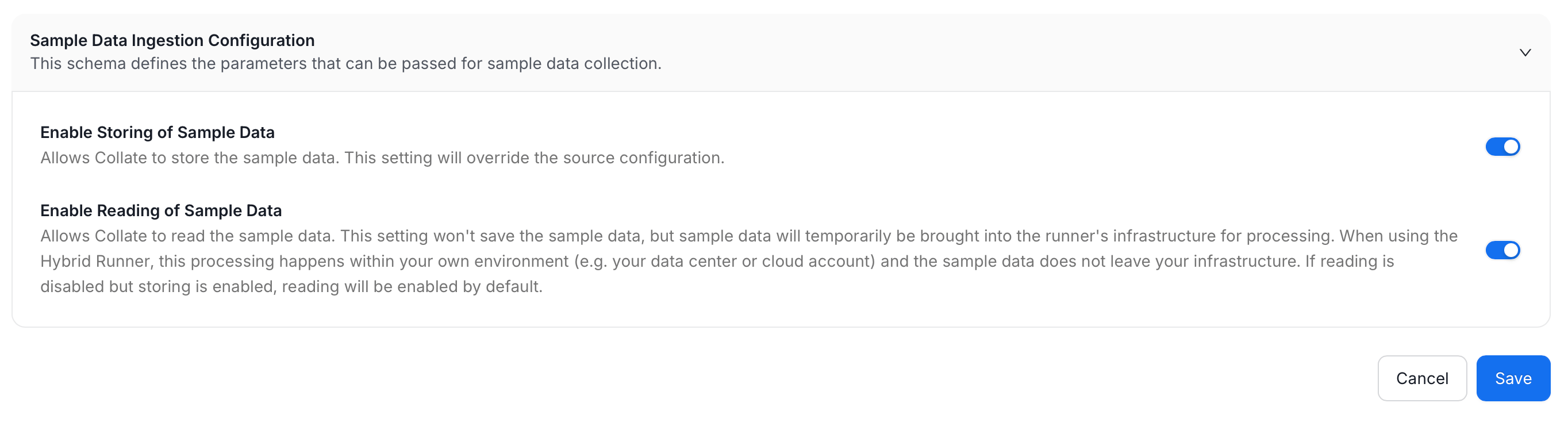 1. Set the toggles to decide whether that trade-off is acceptable platform-wide:
| Setting | Description | Default |
| :-------------------------------- | :------------------------------------------------------------------------------------------------------------------------------------------------------------------------------------------------------------------------------------------------------------------------------------------------------------------------------------------------------------------------------------------------- | :------ |
| **Enable Storing of Sample Data** | Allows Collate to store the sample data. This setting overrides the source configuration. | On |
| **Enable Reading of Sample Data** | Allows Collate to read the sample data. This doesn't save the sample data, but it is temporarily brought into the runner's infrastructure for processing. With a Hybrid Runner, that processing happens inside your own environment (your data center or cloud account), so the sample data never leaves your infrastructure. If reading is off but storing is on, reading turns on automatically. | On |
2. Click **Save** to apply your changes.
## Spark Agent Configuration
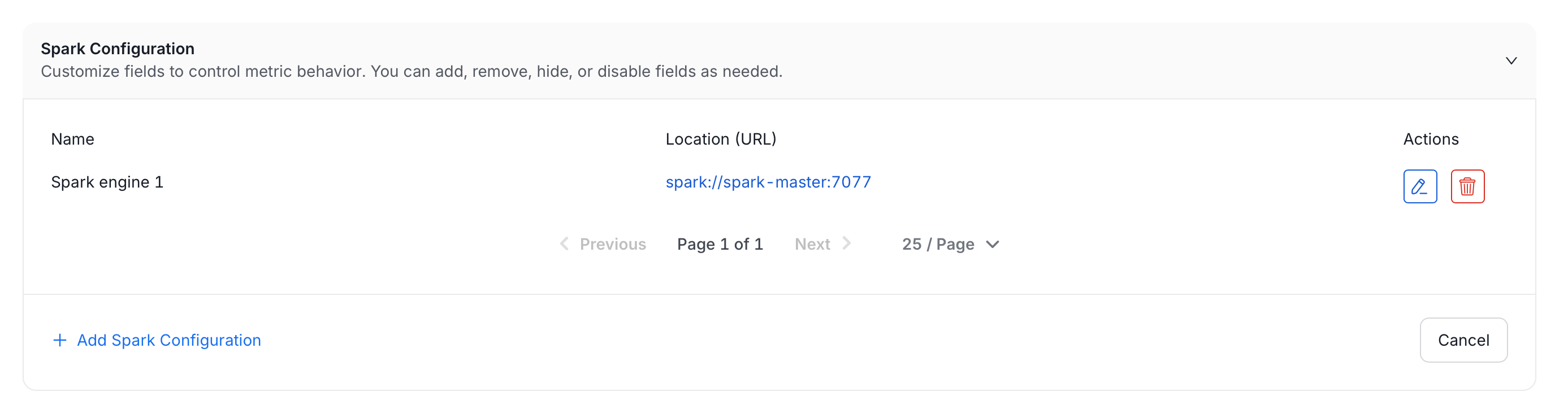
If your deployment uses the [Spark profiling engine](/ai-2-0/how-to-guides/data-quality-observability/profiler/spark-engine), this page also shows a **Spark Configuration** panel. It's a UI alternative to hand-editing the `processingEngine` block in your profiler YAML, described in [Spark Engine External Configuration](/ai-2-0/how-to-guides/data-quality-observability/profiler/spark-engine/configuration/external-configuration): register the Spark Connect endpoint once here, then point any profiler pipeline at it by name instead of repeating the same connection details in every YAML file.
1. Click **Add Spark Configuration**.
1. Set the toggles to decide whether that trade-off is acceptable platform-wide:
| Setting | Description | Default |
| :-------------------------------- | :------------------------------------------------------------------------------------------------------------------------------------------------------------------------------------------------------------------------------------------------------------------------------------------------------------------------------------------------------------------------------------------------- | :------ |
| **Enable Storing of Sample Data** | Allows Collate to store the sample data. This setting overrides the source configuration. | On |
| **Enable Reading of Sample Data** | Allows Collate to read the sample data. This doesn't save the sample data, but it is temporarily brought into the runner's infrastructure for processing. With a Hybrid Runner, that processing happens inside your own environment (your data center or cloud account), so the sample data never leaves your infrastructure. If reading is off but storing is on, reading turns on automatically. | On |
2. Click **Save** to apply your changes.
## Spark Agent Configuration
If your deployment uses the [Spark profiling engine](/ai-2-0/how-to-guides/data-quality-observability/profiler/spark-engine), this page also shows a **Spark Configuration** panel. It's a UI alternative to hand-editing the `processingEngine` block in your profiler YAML, described in [Spark Engine External Configuration](/ai-2-0/how-to-guides/data-quality-observability/profiler/spark-engine/configuration/external-configuration): register the Spark Connect endpoint once here, then point any profiler pipeline at it by name instead of repeating the same connection details in every YAML file.
1. Click **Add Spark Configuration**.
 2. Set the following fields:
* **Name**: Required. A unique identifier for this configuration, referenced from profiler pipelines. Can't be changed after creation.
* **Display Name**: Optional, friendlier label shown in the list.
* **Description**: Optional.
* **Spark Remote URL**: Required. The Spark Connect endpoint, for example `sc://your_spark_connect_host:15002`. Corresponds to `remote` in the YAML configuration.
* **Temporary Path**: Shared path Spark writes intermediate profiling data to. Must be reachable by every node in the Spark cluster, such as S3, HDFS, or a mounted network drive. Default: `/tmp/openmetadata`. Corresponds to `tempPath` in the YAML configuration.
* **Additional Spark Configuration**: Optional key-value pairs passed through to the Spark session. Click the **+** button to add a row. Corresponds to `extraConfig` in the YAML configuration.
2. Set the following fields:
* **Name**: Required. A unique identifier for this configuration, referenced from profiler pipelines. Can't be changed after creation.
* **Display Name**: Optional, friendlier label shown in the list.
* **Description**: Optional.
* **Spark Remote URL**: Required. The Spark Connect endpoint, for example `sc://your_spark_connect_host:15002`. Corresponds to `remote` in the YAML configuration.
* **Temporary Path**: Shared path Spark writes intermediate profiling data to. Must be reachable by every node in the Spark cluster, such as S3, HDFS, or a mounted network drive. Default: `/tmp/openmetadata`. Corresponds to `tempPath` in the YAML configuration.
* **Additional Spark Configuration**: Optional key-value pairs passed through to the Spark session. Click the **+** button to add a row. Corresponds to `extraConfig` in the YAML configuration.
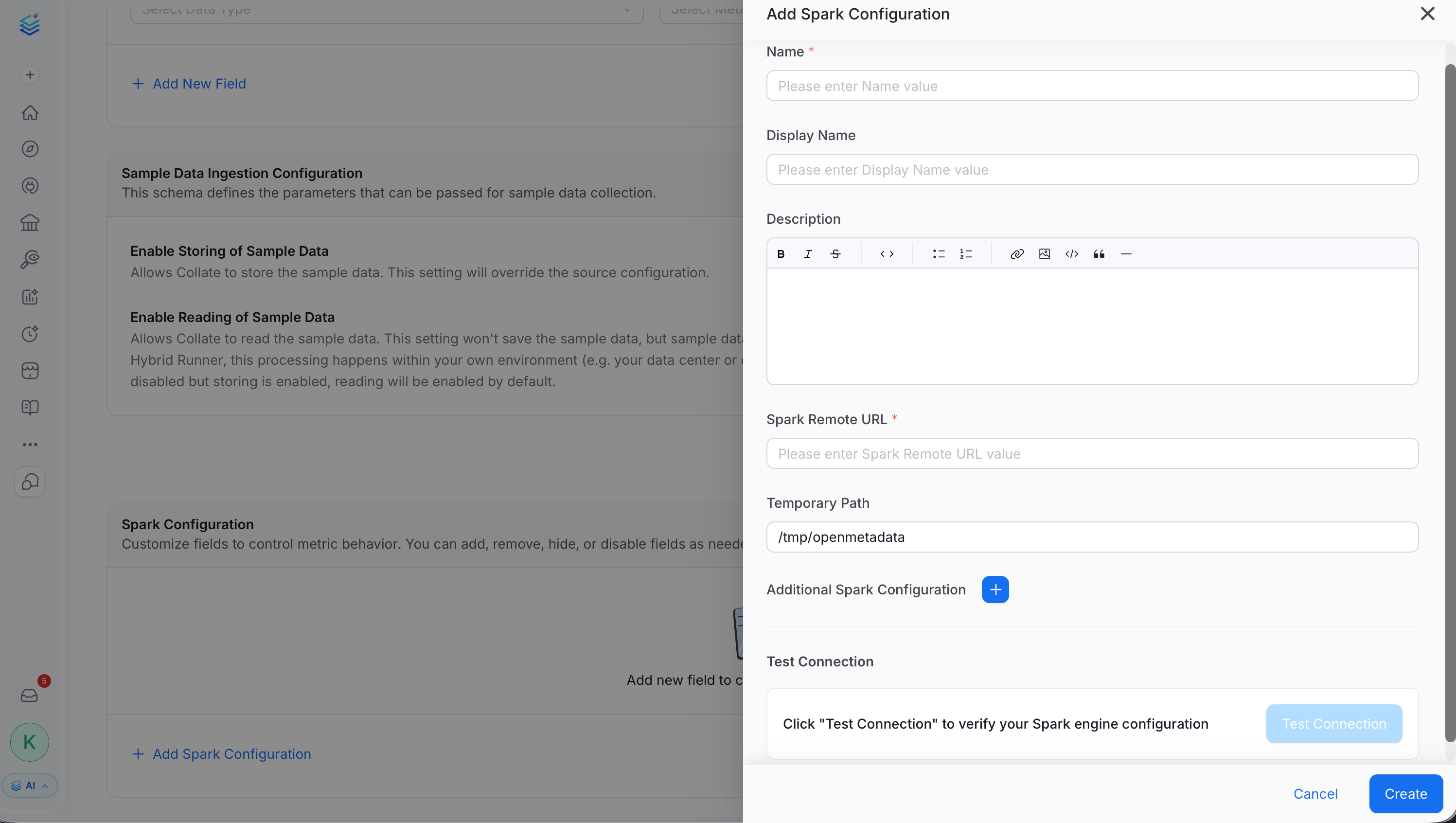 3. Click **Test Connection** to verify Collate can reach the Spark Remote URL. This runs an actual connectivity check and can take a few minutes. It fails automatically if it doesn't complete within three minutes.
4. Click **Create**.
Each Spark configuration you register here is stored as an [Ingestion Runner](/ai-2-0/admin-guide/preferences/ingestion-runners), alongside Hybrid Runners, just filtered out of that page's list since the two serve different purposes.
To edit or remove a configuration later, use the **Edit** or **Delete** icon next to it in the **Spark Configuration** list.
3. Click **Test Connection** to verify Collate can reach the Spark Remote URL. This runs an actual connectivity check and can take a few minutes. It fails automatically if it doesn't complete within three minutes.
4. Click **Create**.
Each Spark configuration you register here is stored as an [Ingestion Runner](/ai-2-0/admin-guide/preferences/ingestion-runners), alongside Hybrid Runners, just filtered out of that page's list since the two serve different purposes.
To edit or remove a configuration later, use the **Edit** or **Delete** icon next to it in the **Spark Configuration** list.