> ## Documentation Index
> Fetch the complete documentation index at: https://docs.getcollate.io/llms.txt
> Use this file to discover all available pages before exploring further.
# Ingestion Runners
> Manage the Hybrid Runners registered to your Collate instance, including status, logs, and which runner is used by default.
# Ingestion Runners
**Ingestion Runners** lists every Hybrid Runner already registered to your Collate instance. From here you can:
* Monitor runners
* Filter the list
* Manage them from the UI, without needing shell or infrastructure access to the runner itself
When configuring a service's ingestion, pick one of these runners by name, or leave it on the default runner. This page only manages runners that already exist. For more information about provisioning a new Hybrid Runner, see [Hybrid Runner Overview](/ai-2-0/how-to-guides/deployment/hybrid-runner).
**Purpose and Benefits**
* **Purpose**: View and manage every Hybrid Runner registered to your instance: status, logs, and which one is used by default.
* **Benefits**: Lets you monitor and manage runners from the UI, without needing shell or infrastructure access to the runner itself.
## How to Access
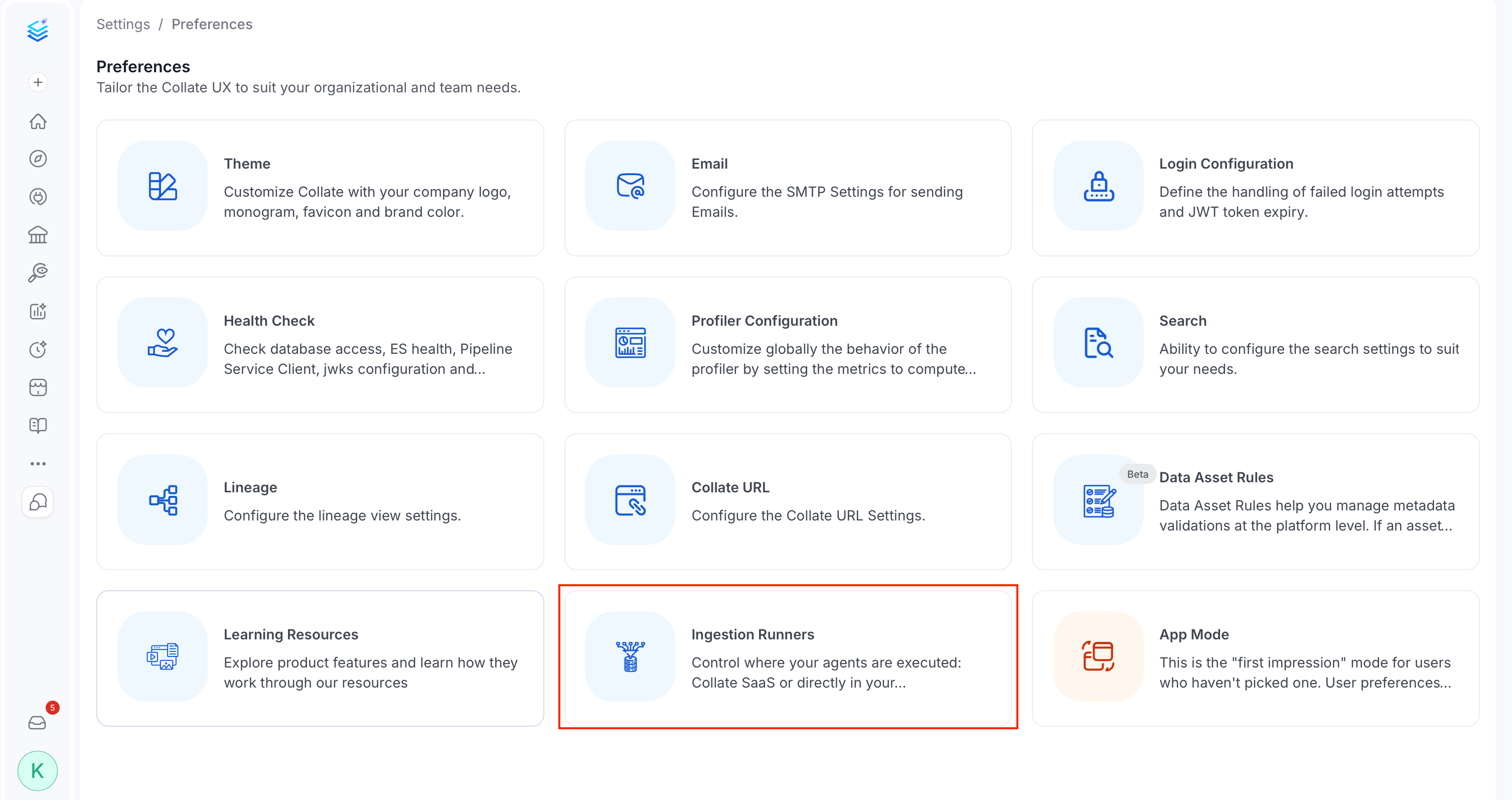
Click the **Profile** icon and navigate to **Settings** > **Preferences** > **Ingestion Runners**.
 ## Ingestion Runners Table
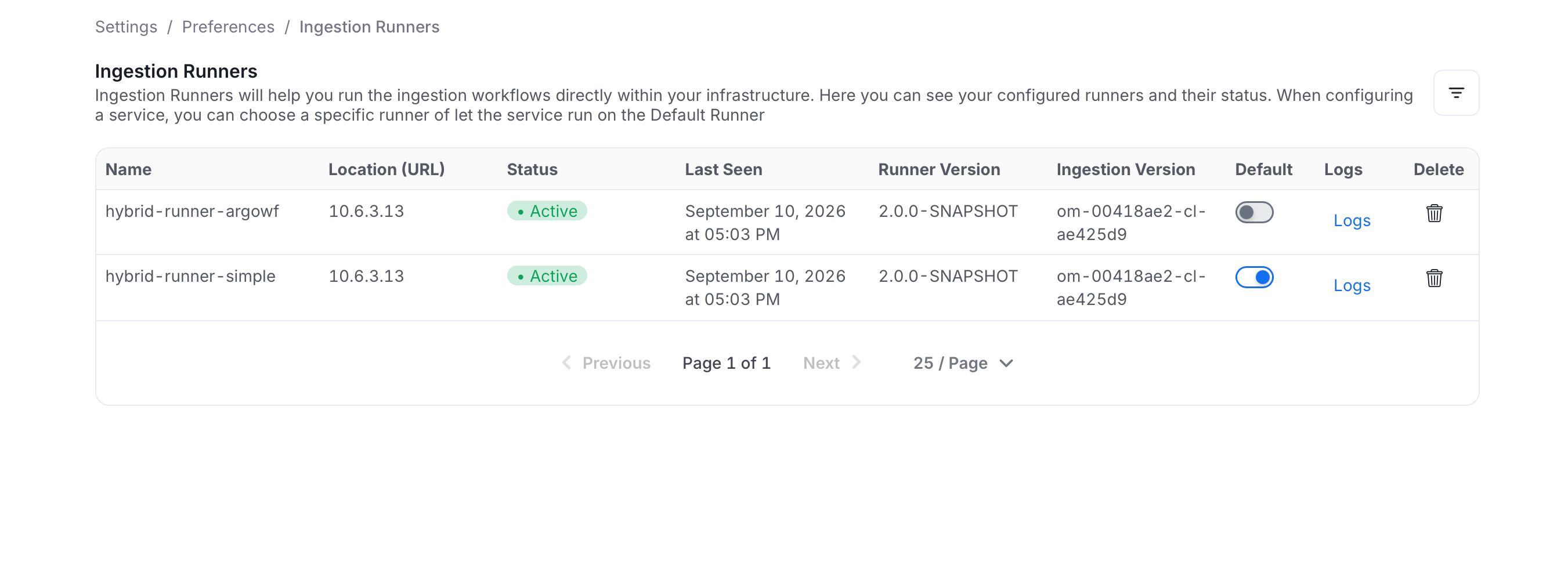
The table shows every registered runner and enough detail to tell, at a glance, which ones are healthy and which need attention:
## Ingestion Runners Table
The table shows every registered runner and enough detail to tell, at a glance, which ones are healthy and which need attention:
 | Column | Description |
| :-------------------- | :-------------------------------------------------------- |
| **Name** | Runner display name |
| **Location (URL)** | Endpoint the runner is reachable at |
| **Status** | `New`, `Active`, `Inactive`, or `Error` |
| **Last Seen** | Timestamp of the runner's last heartbeat |
| **Runner Version** | Version of the Hybrid Runner software |
| **Ingestion Version** | Version of the ingestion framework the runner is running |
| **Default** | Whether connection forms pre-select this runner |
| **Logs** | Opens the runner's logs, when streamable logs are enabled |
| **Delete** | Removes the runner |
Use the filter icon above the table to narrow the list to **All**, **Active**, or **Inactive** runners, which is especially useful once you have more than a handful registered.
## Setting a Default Runner
The default runner is the one Collate pre-fills automatically when someone creates a new connection, so setting it correctly saves every team from having to pick the right runner by hand each time.
Toggle **Default** on a runner's row to make it the one pre-selected in new connection forms. You can't set an **Inactive** runner as the default, and you can't turn the toggle off directly on the current default. Set a different runner as default instead.
Changing the default runner updates which runner is pre-selected in future connection forms only. It doesn't move or restart ingestion already scheduled on another runner.
## Viewing Logs
When a runner shows an `Error` status or an ingestion job behaves unexpectedly, its logs are usually the fastest way to find out why, without needing separate access to the infrastructure the runner is deployed on.
Click **Logs** on a runner's row to open its recent log output. This is only available for runners with streamable logs enabled, which requires S3 log storage to be configured. Otherwise the button is disabled with a tooltip explaining why.
| Column | Description |
| :-------------------- | :-------------------------------------------------------- |
| **Name** | Runner display name |
| **Location (URL)** | Endpoint the runner is reachable at |
| **Status** | `New`, `Active`, `Inactive`, or `Error` |
| **Last Seen** | Timestamp of the runner's last heartbeat |
| **Runner Version** | Version of the Hybrid Runner software |
| **Ingestion Version** | Version of the ingestion framework the runner is running |
| **Default** | Whether connection forms pre-select this runner |
| **Logs** | Opens the runner's logs, when streamable logs are enabled |
| **Delete** | Removes the runner |
Use the filter icon above the table to narrow the list to **All**, **Active**, or **Inactive** runners, which is especially useful once you have more than a handful registered.
## Setting a Default Runner
The default runner is the one Collate pre-fills automatically when someone creates a new connection, so setting it correctly saves every team from having to pick the right runner by hand each time.
Toggle **Default** on a runner's row to make it the one pre-selected in new connection forms. You can't set an **Inactive** runner as the default, and you can't turn the toggle off directly on the current default. Set a different runner as default instead.
Changing the default runner updates which runner is pre-selected in future connection forms only. It doesn't move or restart ingestion already scheduled on another runner.
## Viewing Logs
When a runner shows an `Error` status or an ingestion job behaves unexpectedly, its logs are usually the fastest way to find out why, without needing separate access to the infrastructure the runner is deployed on.
Click **Logs** on a runner's row to open its recent log output. This is only available for runners with streamable logs enabled, which requires S3 log storage to be configured. Otherwise the button is disabled with a tooltip explaining why.
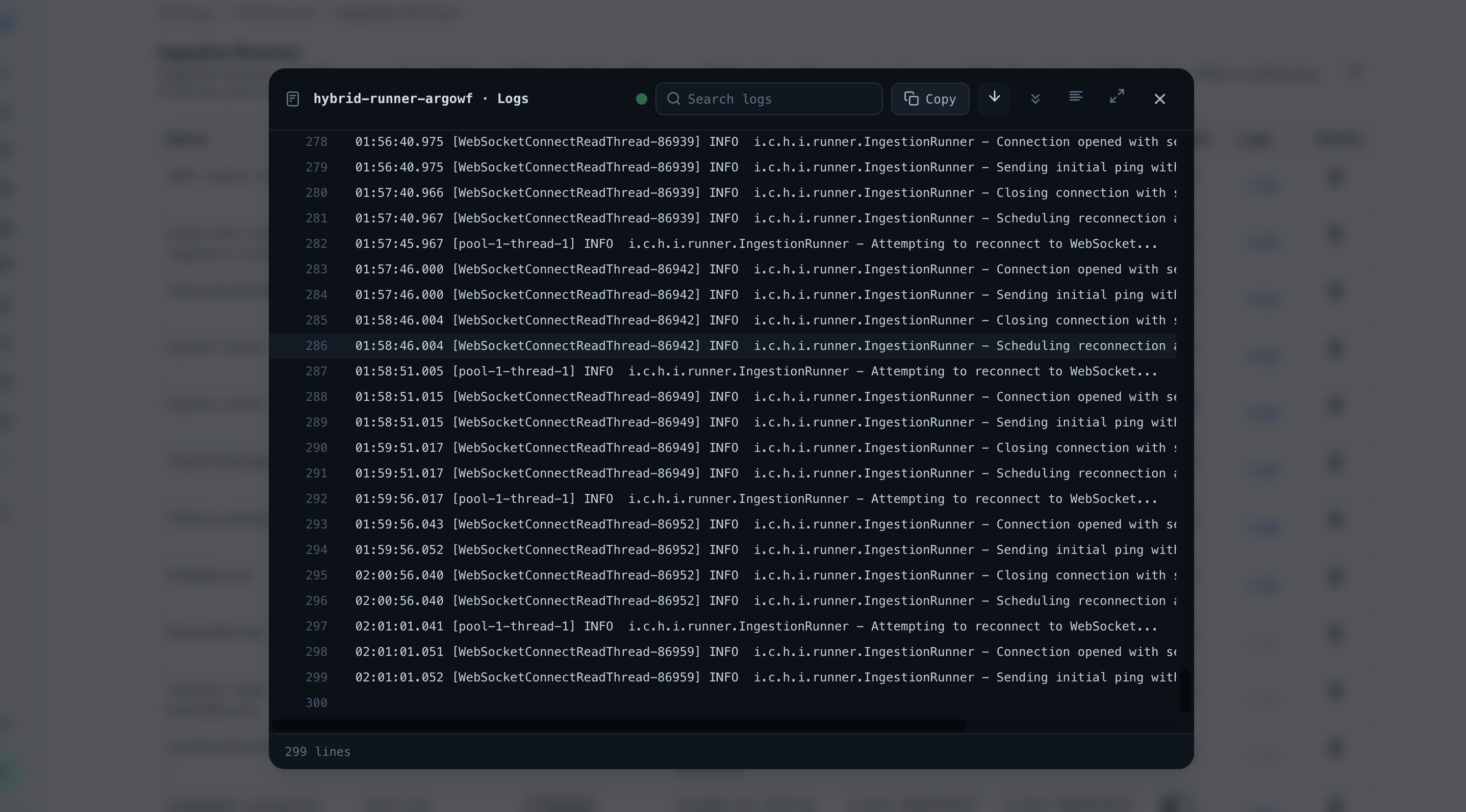 The logs modal is titled ` · Logs`. A green dot next to the title means logs are streaming live. It switches to a reconnecting state if the stream drops and Collate is trying to restore it. Each line is prefixed with a line number and shows the runner's own log output as-is (timestamp, thread name, log level, logger class, and message), and the footer shows the total number of lines loaded.
The toolbar above the logs gives you:
| Control | What it does |
| :-------------------------- | :---------------------------------------------------------------------------------------- |
| **Search logs** | Filters to matching lines and shows a match count |
| **Copy** | Copies the visible log content to your clipboard |
| **Live Auto-Scroll** (icon) | Toggles whether new lines auto-scroll into view. Only shown while logs are streaming live |
| **Jump to end** (icon) | Scrolls to the latest line |
| **Wrap** (icon) | Toggles whether long lines wrap or scroll horizontally |
| **Full screen** (icon) | Expands the modal to fill the screen |
| **Download** (icon) | Downloads the logs as a file |
## Deleting a Runner
Click the **Delete** icon next to an ingestion runner, then confirm to remove it. Deleting a runner removes it from this list and from connection forms. It doesn't stop the underlying runner process itself, so decommission it on the infrastructure side first.
The logs modal is titled ` · Logs`. A green dot next to the title means logs are streaming live. It switches to a reconnecting state if the stream drops and Collate is trying to restore it. Each line is prefixed with a line number and shows the runner's own log output as-is (timestamp, thread name, log level, logger class, and message), and the footer shows the total number of lines loaded.
The toolbar above the logs gives you:
| Control | What it does |
| :-------------------------- | :---------------------------------------------------------------------------------------- |
| **Search logs** | Filters to matching lines and shows a match count |
| **Copy** | Copies the visible log content to your clipboard |
| **Live Auto-Scroll** (icon) | Toggles whether new lines auto-scroll into view. Only shown while logs are streaming live |
| **Jump to end** (icon) | Scrolls to the latest line |
| **Wrap** (icon) | Toggles whether long lines wrap or scroll horizontally |
| **Full screen** (icon) | Expands the modal to fill the screen |
| **Download** (icon) | Downloads the logs as a file |
## Deleting a Runner
Click the **Delete** icon next to an ingestion runner, then confirm to remove it. Deleting a runner removes it from this list and from connection forms. It doesn't stop the underlying runner process itself, so decommission it on the infrastructure side first.