> ## Documentation Index
> Fetch the complete documentation index at: https://docs.getcollate.io/llms.txt
> Use this file to discover all available pages before exploring further.
# Email
> Configure the SMTP server Collate uses to send invite, notification, and alert emails, and verify it with a test message.
# Email
Collate sends email for several purposes:
* Team invites
* Task and conversation notifications
* Alerts
* Scheduled reports
None of that mail goes out until an admin points Collate at a working SMTP server, so this is one of the first settings to configure on a new instance if you want invited teammates to actually receive their invite emails. The **Email** page under Preferences configures the SMTP server used to send all of these.
**Purpose and Benefits**
* **Purpose**: Configure the SMTP server Collate uses to send invite, notification, and alert emails.
* **Benefits**: Ensures teammates and automated alerts are reliably delivered, and lets you verify delivery before relying on it.
## Configure Email
1. Click the **Profile** icon and navigate to **Settings** > **Preferences** > **Email**.
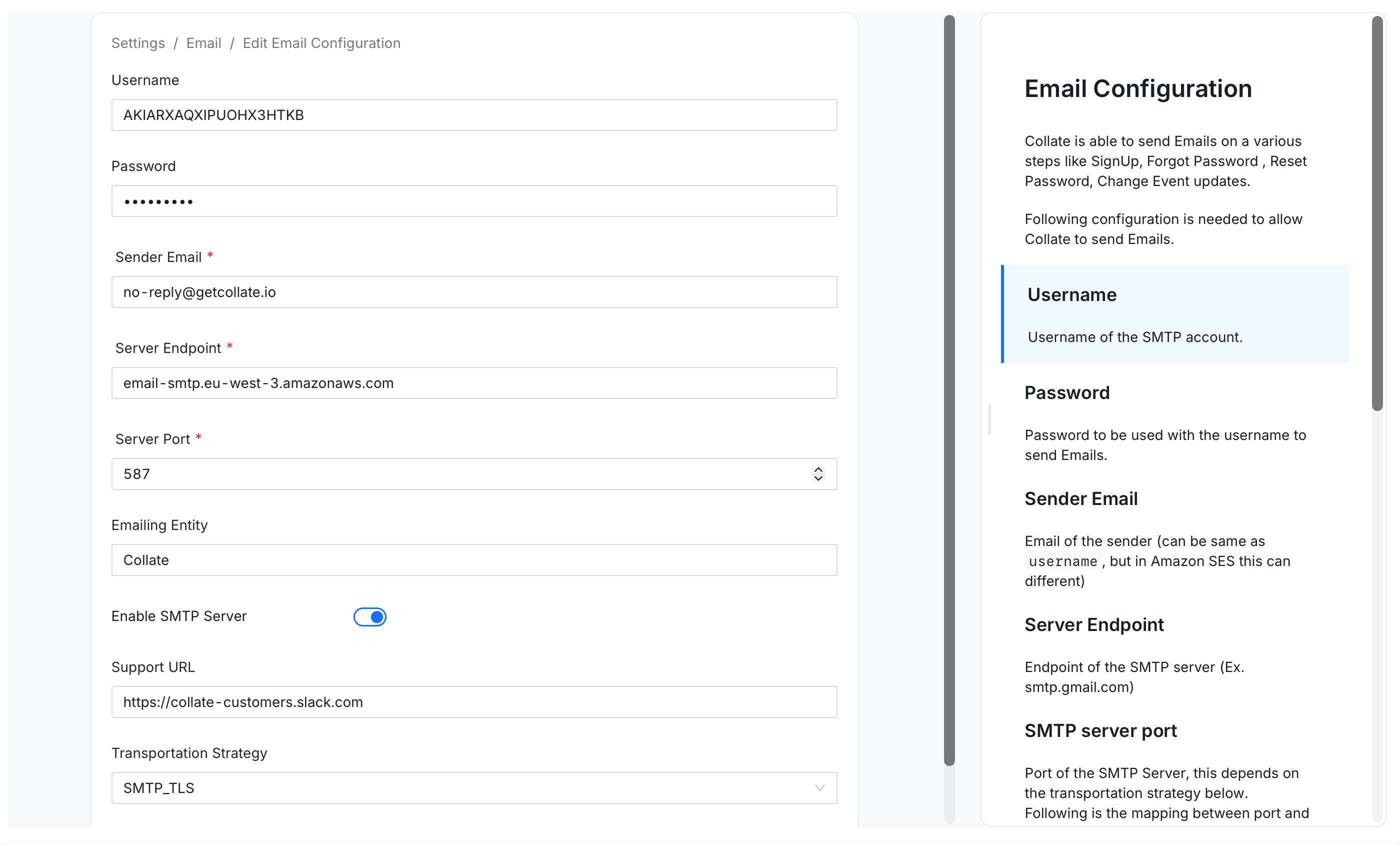
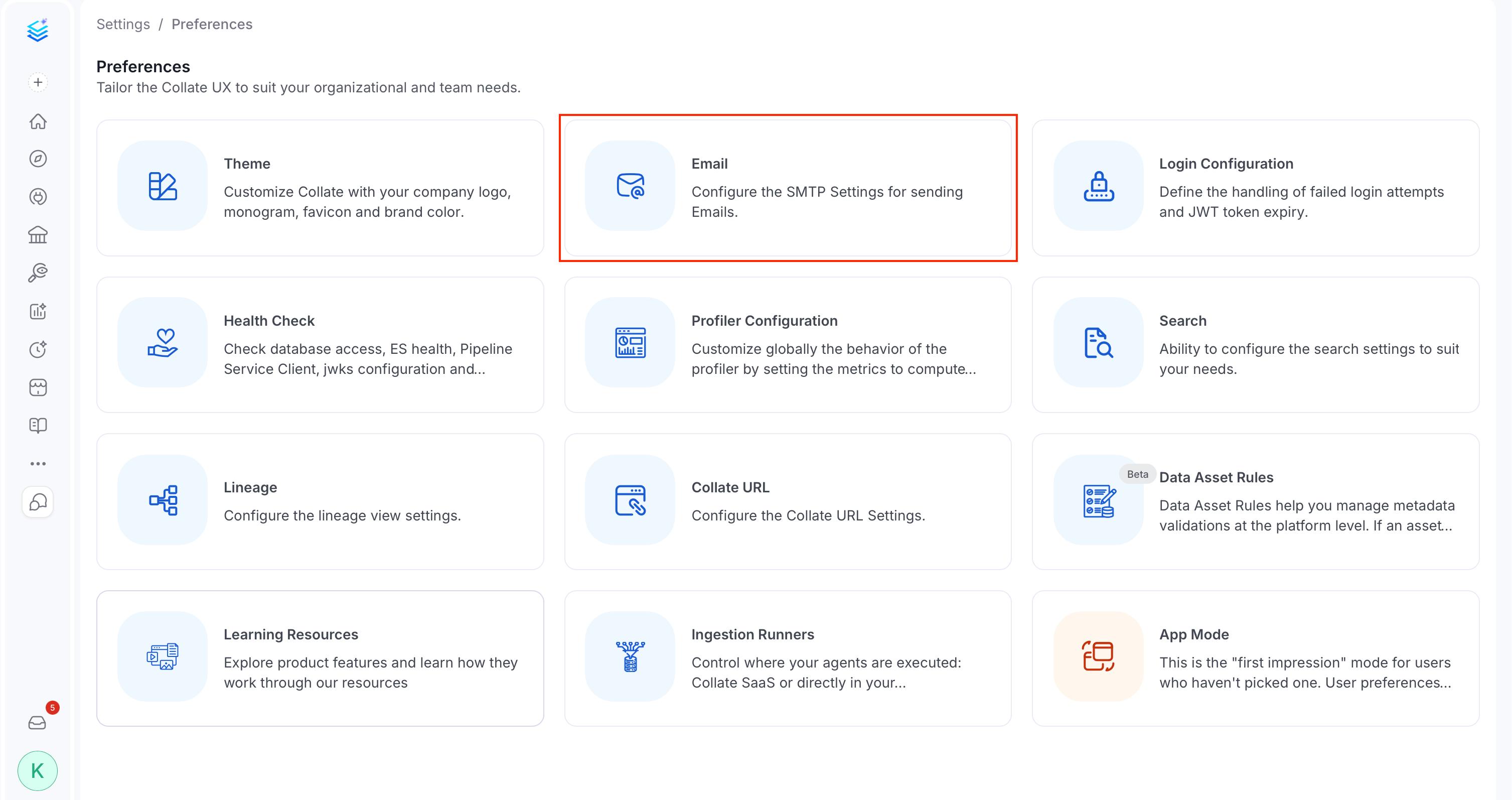 2. Click **Edit** and configure the following fields:
 | Field | What It Does | What You Accomplish |
| :-------------------------- | :-------------------------------------------------------------------------------------------------------------------------------------------------------- | :-------------------------------------------------------------------------------------------------------------------------------------------- |
| **Username** | SMTP account username | Authenticates Collate to your mail provider so it's allowed to send on your behalf |
| **Password** | SMTP account password | Completes that authentication. Without it, sending fails even with a correct username |
| **Sender Email** | Required. The "from" address on outgoing mail. Can be the same as **Username**, though some providers, such as Amazon SES, use a different value for each | Determines what recipients see as the sender, and what they reply to |
| **Server Endpoint** | Required. Hostname of the SMTP server, for example `smtp.gmail.com` | Points Collate at the mail server that actually delivers the message |
| **Server Port** | Required. Port the SMTP server listens on. The port you use determines which **Transportation Strategy** to select below | Gets the connection to the right listener. The wrong port fails silently or times out |
| **Emailing Entity** | Name shown as the sender in outgoing emails, for example your organization name. Default: `OpenMetadata` | Makes outgoing mail immediately recognizable as coming from your organization, not a generic default |
| **Enable SMTP Server** | Turns SMTP sending on or off. When off, Collate doesn't send any email | Lets you stage the rest of this configuration without emailing anyone until you're ready |
| **Support URL** | Link included in emails for users to reach your support team. Default: `https://slack.open-metadata.org` | Gives recipients a way to get help without it dead-ending at your defaults |
| **Transportation Strategy** | Connection security mode, chosen to match **Server Port** | Matching it correctly to the port is what makes the connection actually negotiate. A mismatch here is the most common reason Test Email fails |
Match **Server Port** to the **Transportation Strategy** it corresponds to:
| Server Port | Transportation Strategy |
| :---------- | :---------------------- |
| `25` | `SMTP` |
| `465` | `SMTPS` |
| `587` | `SMTP_TLS` |
| Field | What It Does | What You Accomplish |
| :-------------------------- | :-------------------------------------------------------------------------------------------------------------------------------------------------------- | :-------------------------------------------------------------------------------------------------------------------------------------------- |
| **Username** | SMTP account username | Authenticates Collate to your mail provider so it's allowed to send on your behalf |
| **Password** | SMTP account password | Completes that authentication. Without it, sending fails even with a correct username |
| **Sender Email** | Required. The "from" address on outgoing mail. Can be the same as **Username**, though some providers, such as Amazon SES, use a different value for each | Determines what recipients see as the sender, and what they reply to |
| **Server Endpoint** | Required. Hostname of the SMTP server, for example `smtp.gmail.com` | Points Collate at the mail server that actually delivers the message |
| **Server Port** | Required. Port the SMTP server listens on. The port you use determines which **Transportation Strategy** to select below | Gets the connection to the right listener. The wrong port fails silently or times out |
| **Emailing Entity** | Name shown as the sender in outgoing emails, for example your organization name. Default: `OpenMetadata` | Makes outgoing mail immediately recognizable as coming from your organization, not a generic default |
| **Enable SMTP Server** | Turns SMTP sending on or off. When off, Collate doesn't send any email | Lets you stage the rest of this configuration without emailing anyone until you're ready |
| **Support URL** | Link included in emails for users to reach your support team. Default: `https://slack.open-metadata.org` | Gives recipients a way to get help without it dead-ending at your defaults |
| **Transportation Strategy** | Connection security mode, chosen to match **Server Port** | Matching it correctly to the port is what makes the connection actually negotiate. A mismatch here is the most common reason Test Email fails |
Match **Server Port** to the **Transportation Strategy** it corresponds to:
| Server Port | Transportation Strategy |
| :---------- | :---------------------- |
| `25` | `SMTP` |
| `465` | `SMTPS` |
| `587` | `SMTP_TLS` |
 3. Click **Save**.
## Test Email
Use **Test Email** to verify the SMTP configuration works before relying on it for real notifications. This catches a wrong port, an expired password, or a blocked outbound connection immediately, instead of finding out later when an invite or an alert quietly fails to arrive:
1. From the Email settings page, click **Test Email**.
3. Click **Save**.
## Test Email
Use **Test Email** to verify the SMTP configuration works before relying on it for real notifications. This catches a wrong port, an expired password, or a blocked outbound connection immediately, instead of finding out later when an invite or an alert quietly fails to arrive:
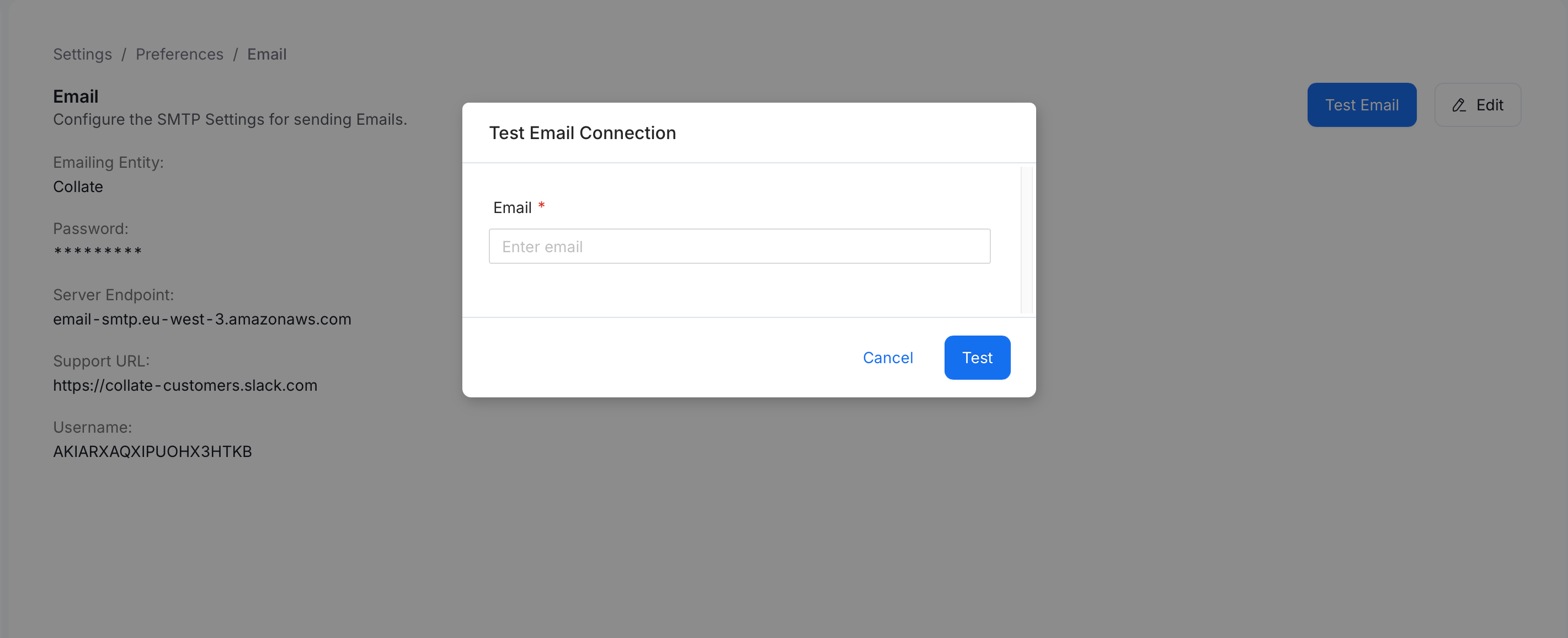
1. From the Email settings page, click **Test Email**.
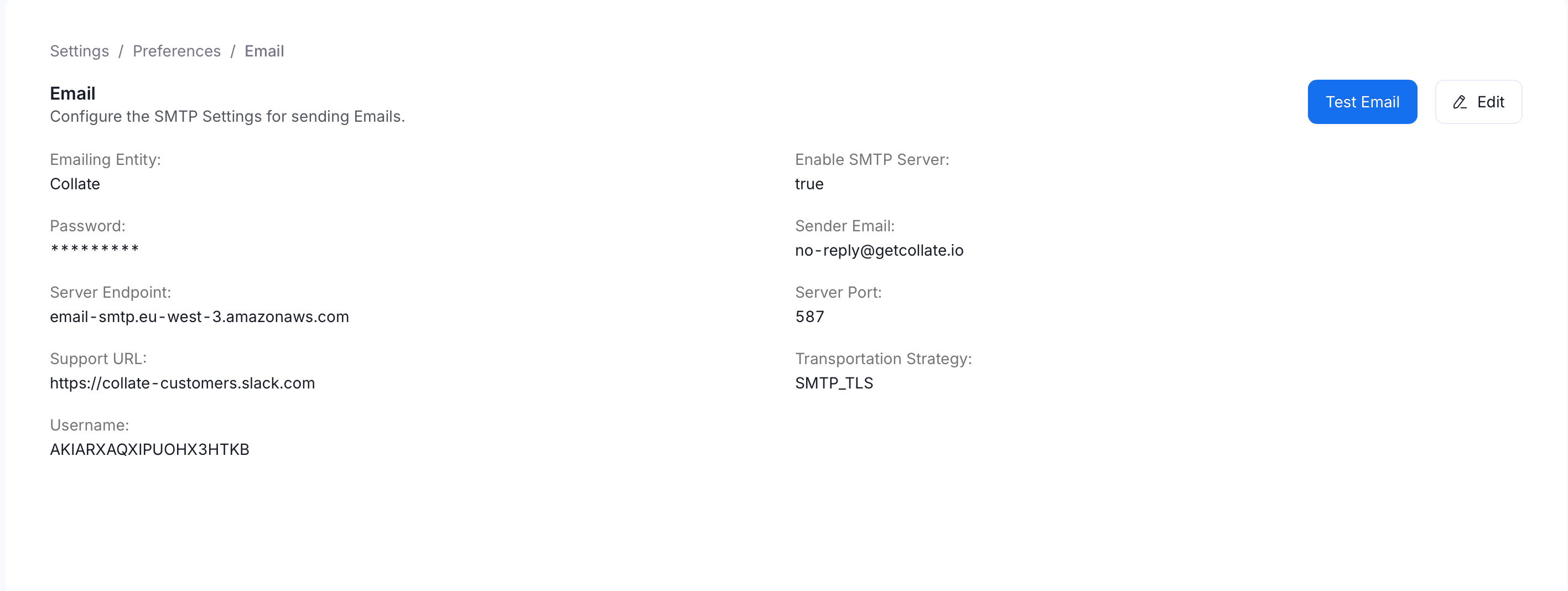 2. Enter a recipient address.
3. Click **Test** to send a one-off test message through the configured SMTP server.
2. Enter a recipient address.
3. Click **Test** to send a one-off test message through the configured SMTP server.
 A success or failure toast confirms whether the SMTP server accepted the test message.
## Collate URL
Collate URL is a separate, single-field setting stored alongside Email configuration. It's used to build the links inside the emails Collate sends, for example, the "view this asset" link in a task notification. If this points at the wrong address, every link in every notification email points at the wrong place, even though the emails themselves send successfully.
1. Click the **Profile** icon and navigate to **Settings** > **Preferences** > **Collate URL**.
A success or failure toast confirms whether the SMTP server accepted the test message.
## Collate URL
Collate URL is a separate, single-field setting stored alongside Email configuration. It's used to build the links inside the emails Collate sends, for example, the "view this asset" link in a task notification. If this points at the wrong address, every link in every notification email points at the wrong place, even though the emails themselves send successfully.
1. Click the **Profile** icon and navigate to **Settings** > **Preferences** > **Collate URL**.
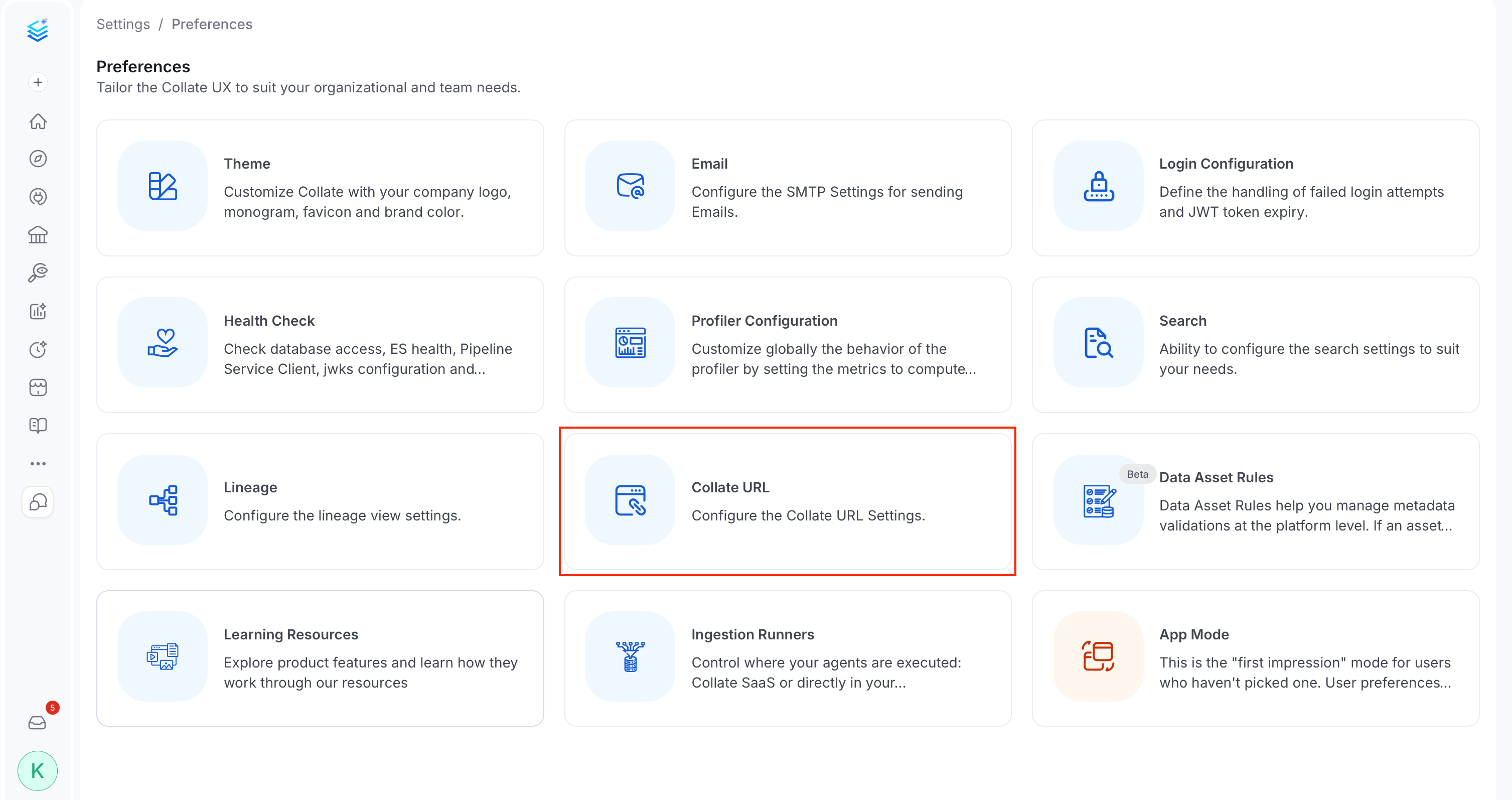 2. Click **Edit**.
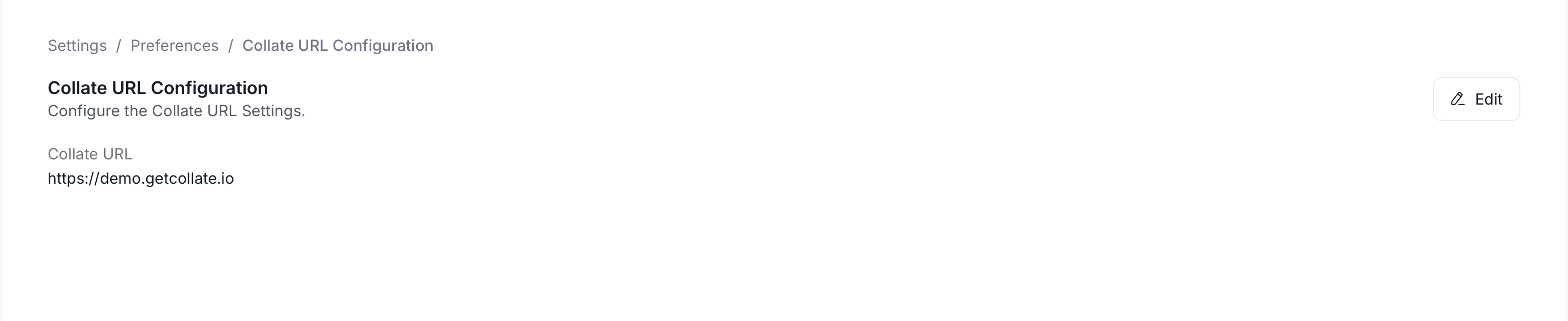 3. Set **Collate URL** to the base URL your users actually use to reach this Collate instance. Default: `http://localhost:8585`, which only works for local development, so update it before you rely on email links in production.
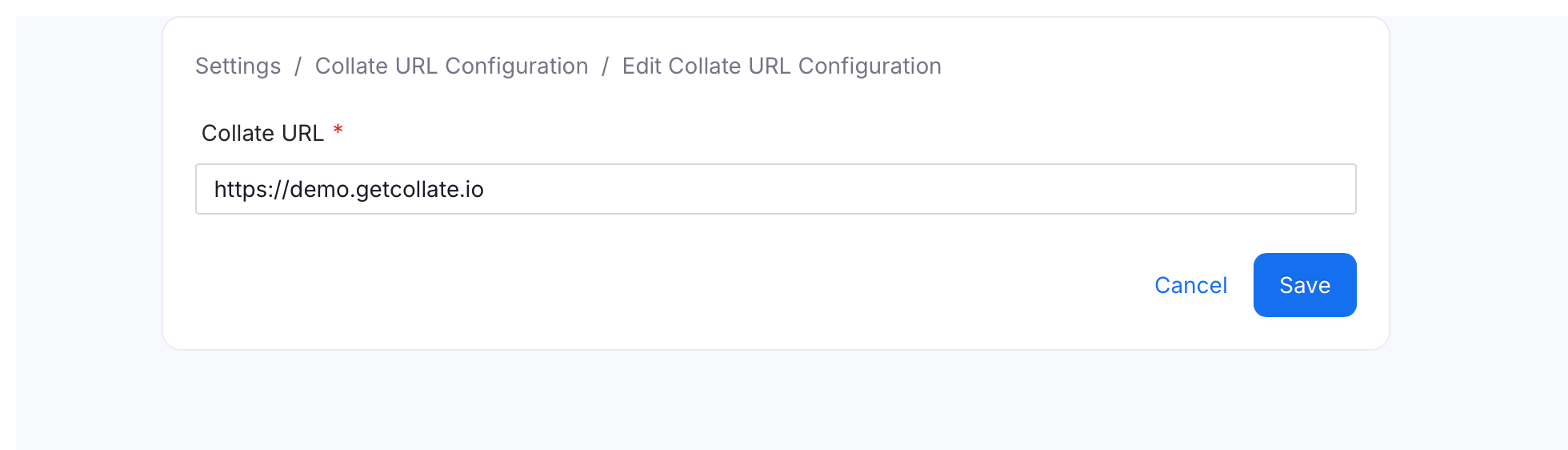 4. Click **Save**.