> ## Documentation Index
> Fetch the complete documentation index at: https://docs.getcollate.io/llms.txt
> Use this file to discover all available pages before exploring further.
# AI Context
> Configure which metadata is preloaded into Collate AI's context for each persona — so every role gets answers grounded in the data that matters most to them.
# AI Context
The **AI Context** tab on a persona's detail page lets admins define rules that select which metadata is compiled into a context document for that persona. When a user of this persona asks a question in Collate AI or uses an MCP client, that compiled context is included alongside the query — so answers are grounded in the metadata that's most relevant to their role, not just whatever the relevance ranking surfaces at query time.
Think of it as persona-scoped prompt engineering: instead of tuning prompts, you curate a context layer that shapes every AI interaction for that role.
* A **business analyst** persona gets the gold and certified tier of tables preloaded — Collate AI defaults to the trusted layer.
* A **data engineer** persona gets broad coverage across all services — nothing is deprioritized.
* A **compliance** persona gets regulatory glossary terms and policy articles always in context — the AI always has the right definitions and constraints available.
**Note**: For how these rules affect AI answers—and how end users can improve results by curating their catalog—see [Context Engineering](/ai-2-0/collate-ai/context-engineering).
## Global Settings
At the top of the AI Context tab, configure the overall behavior before adding rules.
| Setting | Description |
| -------------------- | ------------------------------------------------------------------------------------------------------------------------------------------------------------------ |
| **Enabled** | Toggle on to activate context compilation and injection for this persona. Off by default — rules take effect only after enabling. |
| **Character budget** | Maximum characters the compiled context document may contain. Default: 4,00,000 characters. Rules are compiled highest-priority first until the budget is reached. |
| **Cache TTL** | How long the compiled context is cached before it regenerates. Default: 30 minutes. Lower values keep context fresher; higher values reduce compilation overhead. |
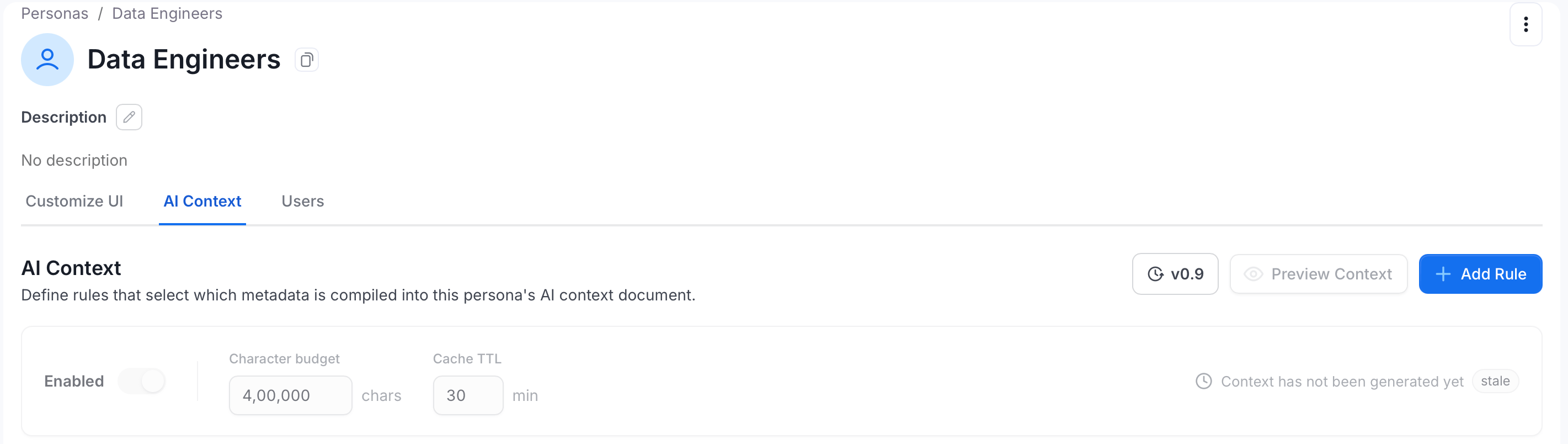 The **version indicator** (for example, v1.8) shows the current schema version of the context document format. The **Preview Context** button lets you see the full compiled document before enabling it — verify what the AI will receive before turning the feature on.
## Add a Rule
Each rule defines a set of entities whose metadata is compiled into the context document. Add multiple rules to build up the full context for a persona — one rule for core tables, another for glossary terms, another for policy articles.
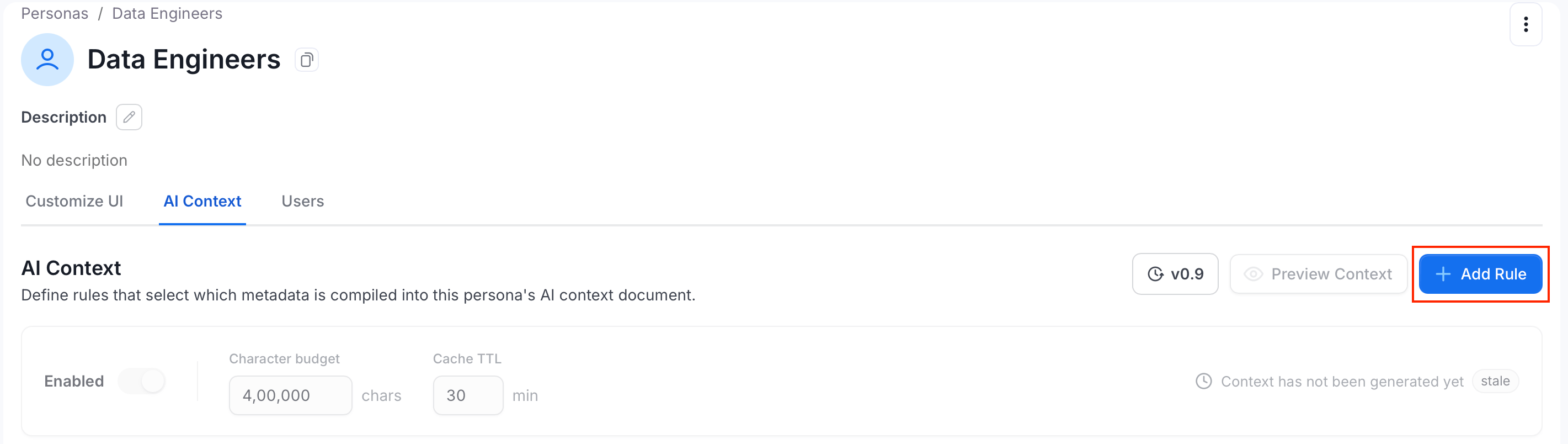
1. Click **+ Add Rule**.
The **version indicator** (for example, v1.8) shows the current schema version of the context document format. The **Preview Context** button lets you see the full compiled document before enabling it — verify what the AI will receive before turning the feature on.
## Add a Rule
Each rule defines a set of entities whose metadata is compiled into the context document. Add multiple rules to build up the full context for a persona — one rule for core tables, another for glossary terms, another for policy articles.
1. Click **+ Add Rule**.
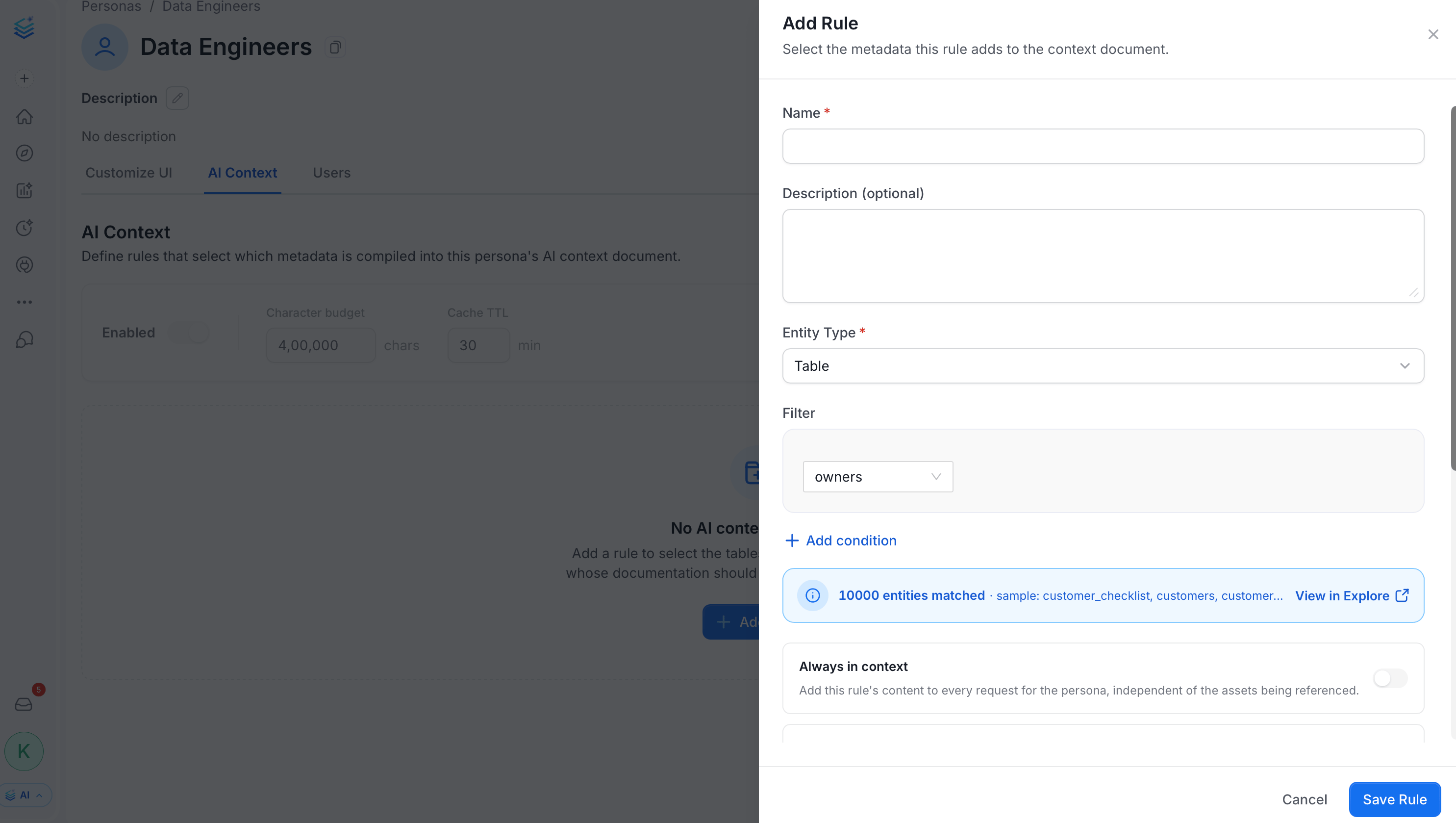
 2. Configure the rule fields. See [Configuration Fields](#configuration-fields).
 3. Click **Save Rule**.
## Configuration Fields
### Name and Description
Give the rule a clear name that describes what it selects — for example, *Core finance tables* or *Compliance policy articles*. The description is optional but useful when managing many rules.
### Entity Type
Choose which type of entity this rule selects. Options include **Table**, **Glossary Term**, **Article**, and **Metric**, among others. Each rule targets one entity type. Create separate rules to preload different types into the same context.
### Filter
Add conditions to narrow which entities this rule includes. Filter by attributes such as:
* **Owners** — include assets owned by a specific team or user
* **Domain** — scope to a specific business domain
* **Tier** — select only Tier 1 or Tier 2 assets
* **Tags** — match assets by classification or custom tags
* **Certification** — include only certified or gold assets
As you build the filter, a live count shows how many entities match — with sample entity names and a **View in Explore** link to verify the selection before saving.
### Always in Context
When enabled, this rule's content is added to every Collate AI request for this persona — regardless of what the user is asking about.
This is the most effective setting for knowledge articles: enable **Always in context** on a rule that selects articles covering domain conventions, business definitions, or team standards. The AI will always have that material available, regardless of the specific query.
Use this to inject persona-level instructions or terminology that should shape every answer — the equivalent of a persistent system prompt scoped to this role.
### Fully Rendered
When enabled, each matched entity's entire documentation is compiled into the context. When off, only the sections selected under **Context sections** are included.
Enable **Fully rendered** only when the persona genuinely needs complete entity documentation. It uses significantly more of the character budget.
### Context Sections
When **Fully rendered** is off, choose which parts of each entity's documentation are compiled. All lightweight sections are on by default.
| Section | Default | Notes |
| -------------------------- | ------- | ------------------------------------------ |
| **Description** | On | |
| **Schema** | On | |
| **Keys & Constraints** | On | |
| **Join** | On | |
| **Tags** | On | |
| **Related glossary terms** | On | |
| **Related Articles** | On | |
| **Related metrics** | On | |
| **Lineage** | Off | Marked **heavy** — large context footprint |
| **Profile** | Off | Marked **heavy** — large context footprint |
| **Data Quality** | Off | Marked **heavy** — large context footprint |
Enable heavy sections only when the persona specifically needs that depth. They consume a significant portion of the character budget and can crowd out other rules.
### Max Assets
The maximum number of matched entities compiled from this rule. Default: 200. When more entities match than the cap allows, Collate compiles the highest-priority ones first — ranked by tier, certification, and usage. Lower this value to leave more budget for other rules.
## Preview the Compiled Context
After adding rules, click **Preview Context** to see the full document exactly as Collate AI will receive it. Use the preview to confirm that the right tables, terms, articles, and metrics are included and that the character budget is being used efficiently — before enabling the context for real users.
## Example Configurations
**Business analyst persona**
* Rule 1: Tables — filter by Tier 1 and certification = Gold — only the most trusted, business-critical assets
* Rule 2: Glossary terms — filter by the analyst's domain — so Collate AI uses agreed business definitions
* Rule 3: Articles — filter by tag `analyst-conventions`, **Always in context** — domain conventions and preferred answer formats are always available
**Data engineering persona**
* Rule 1: Tables — no filter, high max assets — broad coverage across all services
* Rule 2: Articles — filter by tag `pipeline-runbooks`, **Always in context** — operational runbooks always in the AI's view
**Compliance persona**
* Rule 1: Tables — filter by PII tag — surfaces sensitive data assets
* Rule 2: Glossary terms — filter by regulatory classification — correct legal definitions always available
* Rule 3: Articles — filter by tag `compliance-policy`, **Always in context** — policy documents injected into every interaction
3. Click **Save Rule**.
## Configuration Fields
### Name and Description
Give the rule a clear name that describes what it selects — for example, *Core finance tables* or *Compliance policy articles*. The description is optional but useful when managing many rules.
### Entity Type
Choose which type of entity this rule selects. Options include **Table**, **Glossary Term**, **Article**, and **Metric**, among others. Each rule targets one entity type. Create separate rules to preload different types into the same context.
### Filter
Add conditions to narrow which entities this rule includes. Filter by attributes such as:
* **Owners** — include assets owned by a specific team or user
* **Domain** — scope to a specific business domain
* **Tier** — select only Tier 1 or Tier 2 assets
* **Tags** — match assets by classification or custom tags
* **Certification** — include only certified or gold assets
As you build the filter, a live count shows how many entities match — with sample entity names and a **View in Explore** link to verify the selection before saving.
### Always in Context
When enabled, this rule's content is added to every Collate AI request for this persona — regardless of what the user is asking about.
This is the most effective setting for knowledge articles: enable **Always in context** on a rule that selects articles covering domain conventions, business definitions, or team standards. The AI will always have that material available, regardless of the specific query.
Use this to inject persona-level instructions or terminology that should shape every answer — the equivalent of a persistent system prompt scoped to this role.
### Fully Rendered
When enabled, each matched entity's entire documentation is compiled into the context. When off, only the sections selected under **Context sections** are included.
Enable **Fully rendered** only when the persona genuinely needs complete entity documentation. It uses significantly more of the character budget.
### Context Sections
When **Fully rendered** is off, choose which parts of each entity's documentation are compiled. All lightweight sections are on by default.
| Section | Default | Notes |
| -------------------------- | ------- | ------------------------------------------ |
| **Description** | On | |
| **Schema** | On | |
| **Keys & Constraints** | On | |
| **Join** | On | |
| **Tags** | On | |
| **Related glossary terms** | On | |
| **Related Articles** | On | |
| **Related metrics** | On | |
| **Lineage** | Off | Marked **heavy** — large context footprint |
| **Profile** | Off | Marked **heavy** — large context footprint |
| **Data Quality** | Off | Marked **heavy** — large context footprint |
Enable heavy sections only when the persona specifically needs that depth. They consume a significant portion of the character budget and can crowd out other rules.
### Max Assets
The maximum number of matched entities compiled from this rule. Default: 200. When more entities match than the cap allows, Collate compiles the highest-priority ones first — ranked by tier, certification, and usage. Lower this value to leave more budget for other rules.
## Preview the Compiled Context
After adding rules, click **Preview Context** to see the full document exactly as Collate AI will receive it. Use the preview to confirm that the right tables, terms, articles, and metrics are included and that the character budget is being used efficiently — before enabling the context for real users.
## Example Configurations
**Business analyst persona**
* Rule 1: Tables — filter by Tier 1 and certification = Gold — only the most trusted, business-critical assets
* Rule 2: Glossary terms — filter by the analyst's domain — so Collate AI uses agreed business definitions
* Rule 3: Articles — filter by tag `analyst-conventions`, **Always in context** — domain conventions and preferred answer formats are always available
**Data engineering persona**
* Rule 1: Tables — no filter, high max assets — broad coverage across all services
* Rule 2: Articles — filter by tag `pipeline-runbooks`, **Always in context** — operational runbooks always in the AI's view
**Compliance persona**
* Rule 1: Tables — filter by PII tag — surfaces sensitive data assets
* Rule 2: Glossary terms — filter by regulatory classification — correct legal definitions always available
* Rule 3: Articles — filter by tag `compliance-policy`, **Always in context** — policy documents injected into every interaction