> ## Documentation Index
> Fetch the complete documentation index at: https://docs.getcollate.io/llms.txt
> Use this file to discover all available pages before exploring further.
# Learning Resources
> Add, organize, and manage in-product learning content, videos and Storylane tours, that surface contextually across Collate.
# Learning Resources
Learning Resources are short videos and Storylane walkthroughs that teach users how to use a specific feature. Each resource is tagged with one or more **Contexts** (the product pages it's relevant to), so it can surface as contextual, in-product help wherever a user might need it, in addition to being browsable from a central admin list. The API also supports **Article** resources, but the admin UI currently offers only Video and Storylane.
## How to Access
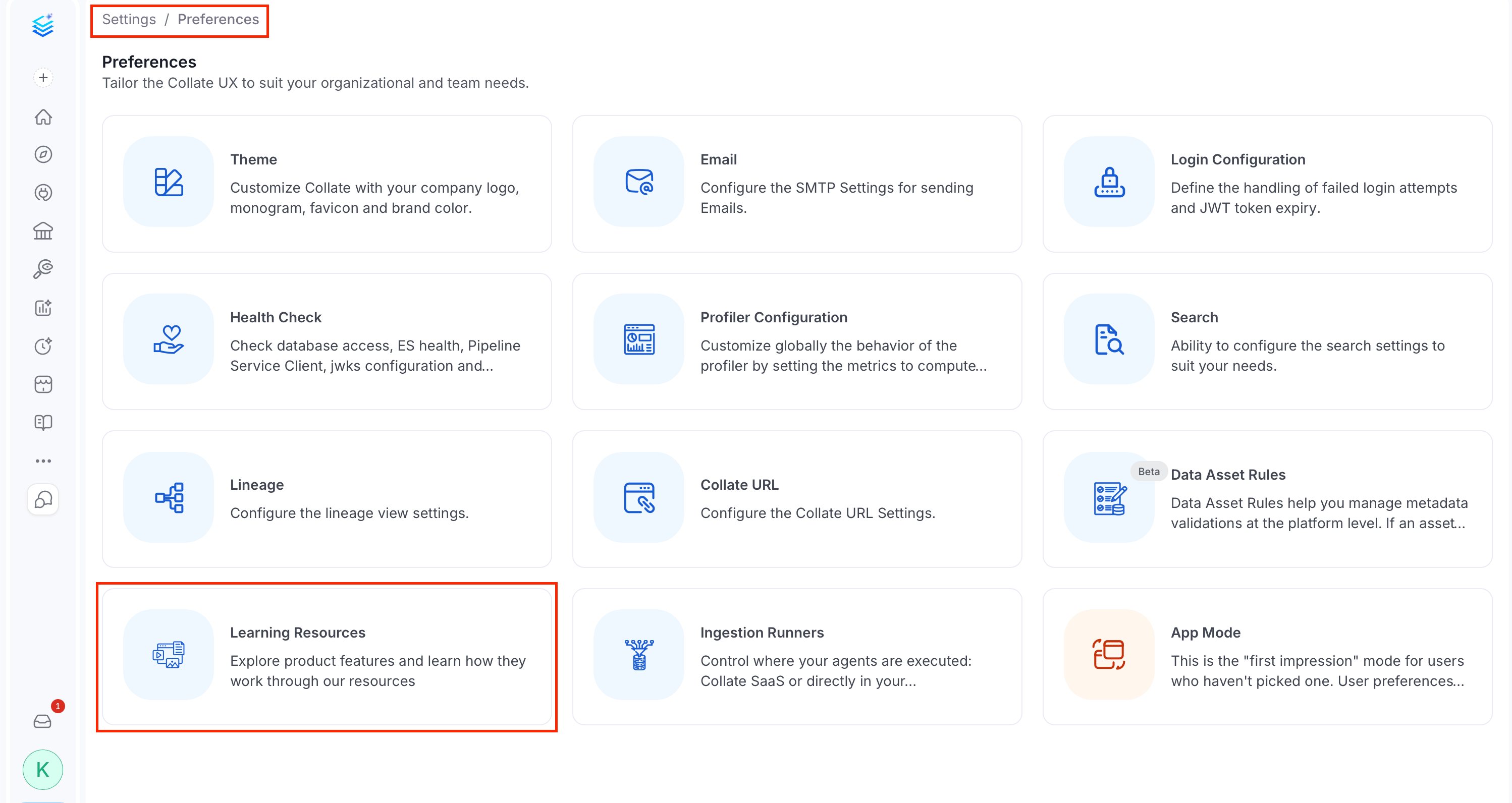
To view and manage Learning Resources, click the **Profile** icon and navigate to **Settings** > **Preferences** > **Learning Resources**.
 ## Overview
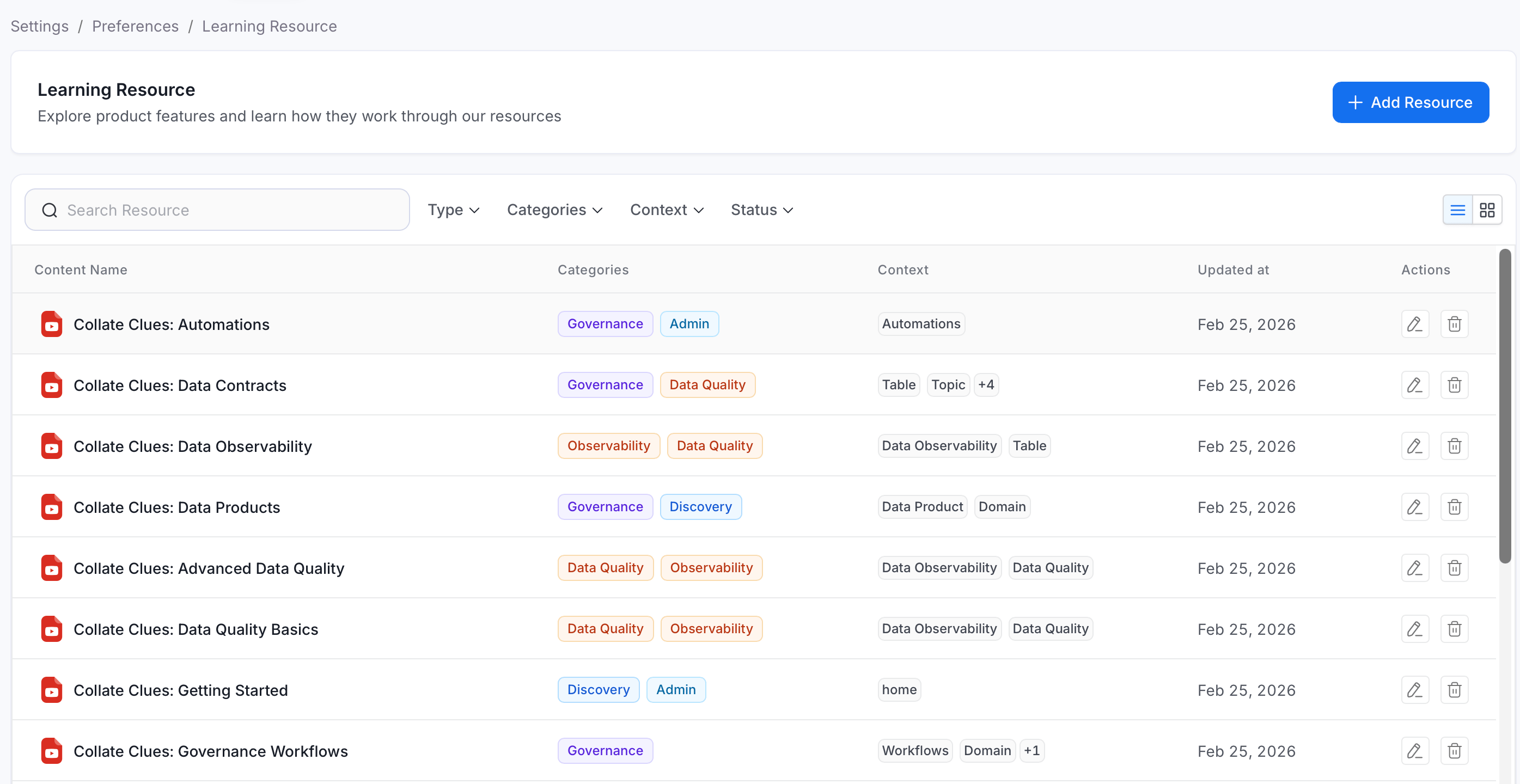
The Learning Resources page lists every resource that's been added to the platform, along with its categories, contexts, and last-updated date. From here:
* Search and filter the existing library.
* Switch between a table view and a card view.
* Add a new resource.
* Edit or delete an existing resource.
## Overview
The Learning Resources page lists every resource that's been added to the platform, along with its categories, contexts, and last-updated date. From here:
* Search and filter the existing library.
* Switch between a table view and a card view.
* Add a new resource.
* Edit or delete an existing resource.
 ## Add a Resource
To add a resource, follow these steps:
1. Navigate to **Settings** > **Preferences** > **Learning Resources**.
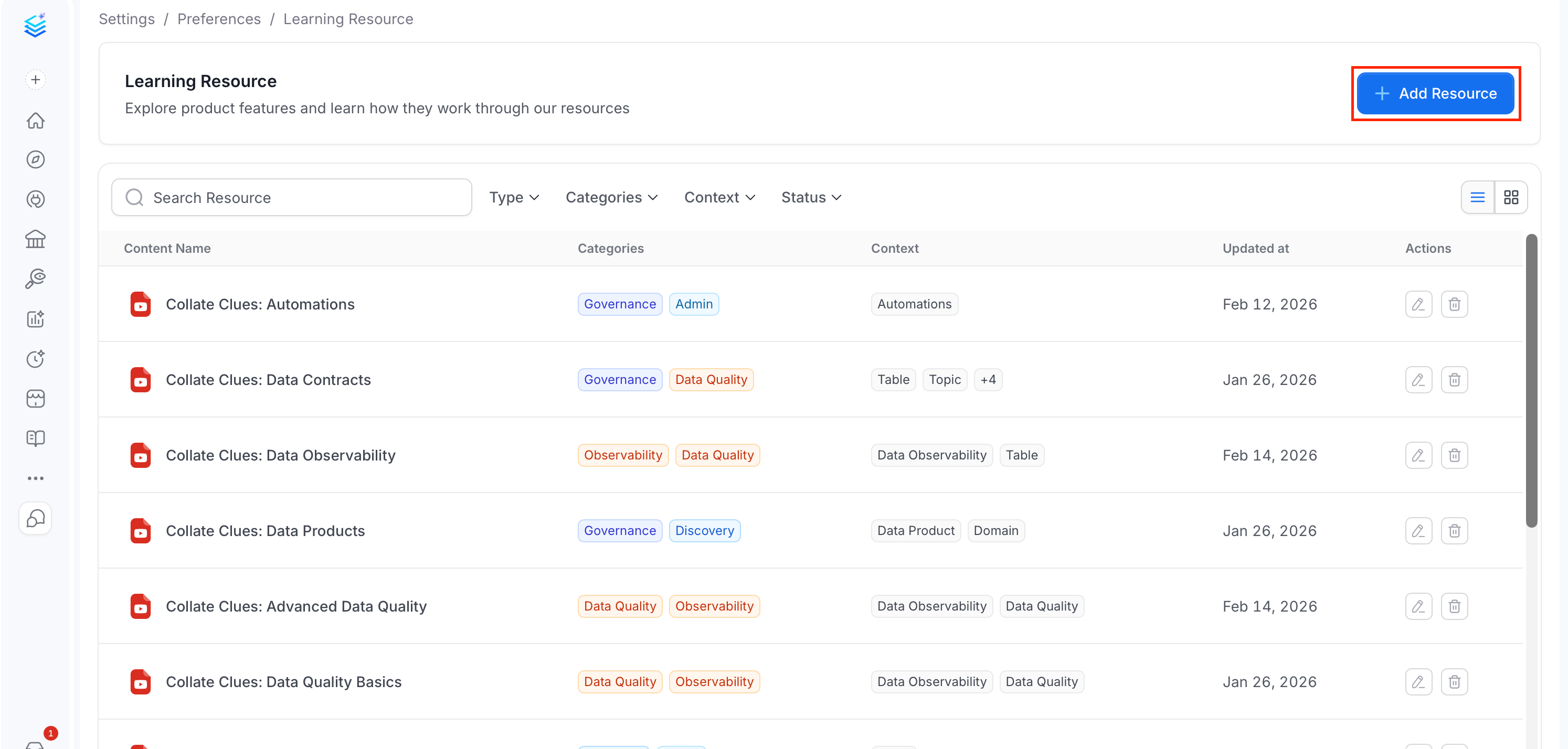
2. Click **Add Resource**.
## Add a Resource
To add a resource, follow these steps:
1. Navigate to **Settings** > **Preferences** > **Learning Resources**.
2. Click **Add Resource**.
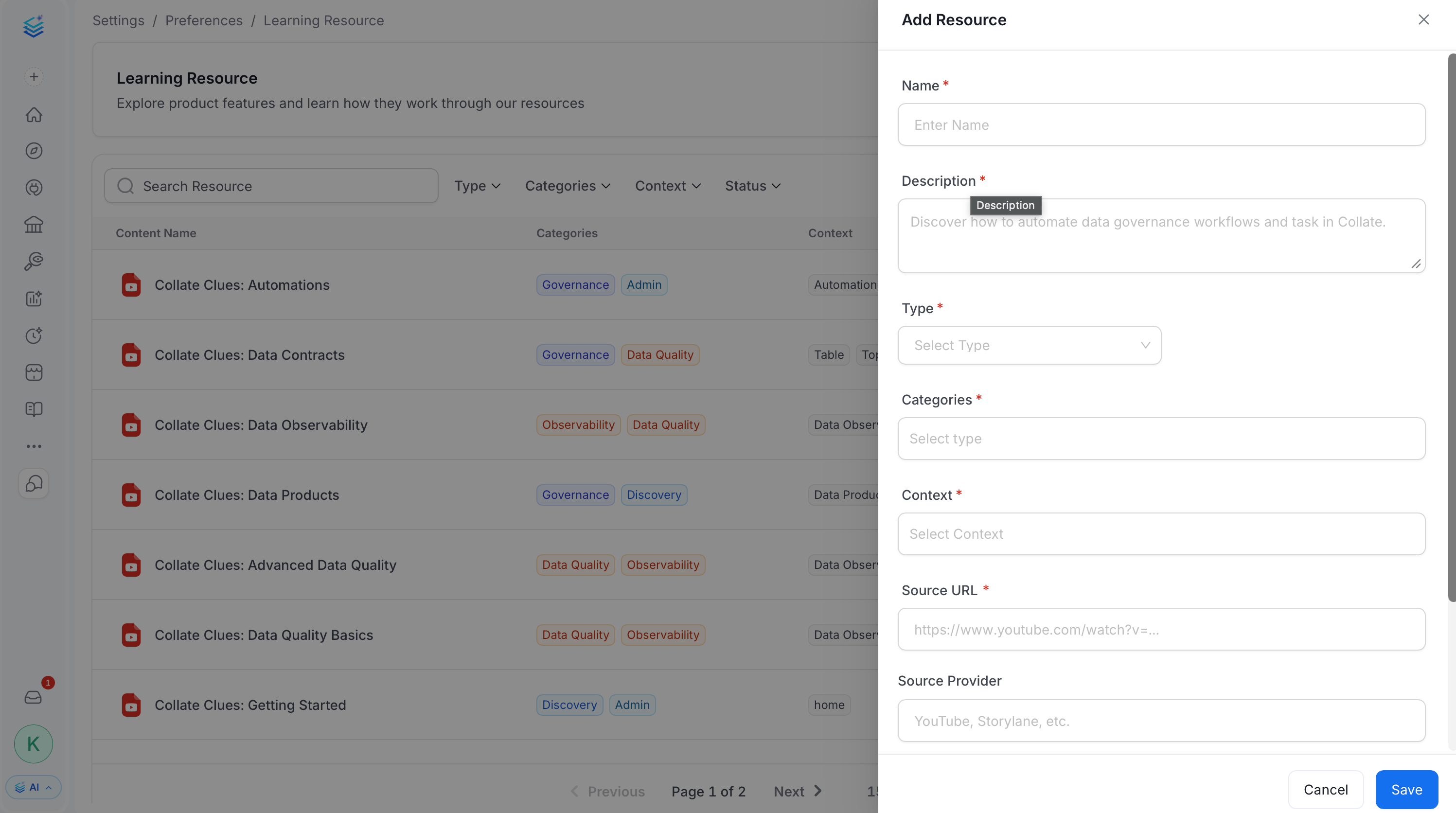
 3. Fill in the following fields:
* **Name**: The internal name for the resource. This cannot be changed after the resource is created.
* **Description**: A short summary of what the resource teaches, shown to users before they open it.
* **Type** (required): The kind of content this is.
* **Video**: An embedded video (for example, hosted on YouTube or Vimeo).
* **Storylane**: An interactive Storylane product tour.
* **Categories**: One or more topic groupings used for browsing and filtering. Available categories: **Discovery**, **Governance**, **Data Quality**, **Observability**, **Admin**, **AI**.
* **Context**: One or more product pages where this resource should surface, for example **Glossary**, **Domain**, **Data Quality**, **Explore**, **Automations**, or **Home Page**. See [Where Learning Resources Appear](#where-learning-resources-appear) for how this drives visibility elsewhere in the product.
* **Source URL**: The link to the video or Storylane tour, for example `https://www.youtube.com/watch?v=...`. Must be a valid URL.
* (Optional) **Source Provider**: A free-text label for the hosting platform, for example `YouTube` or `Storylane`.
* (Optional) **Duration**: The approximate length of the resource, selected from a preset list (1-30 minutes).
* (Optional) **Status**: The resource's publishing state. Defaults to **Active**.
* **Active**: Visible to users, both in the admin list and in contextual drawers.
* **Draft**: Not shown to end users, use this while the resource is still being prepared.
* **Deprecated**: Retired content, kept for reference but hidden from users.
3. Fill in the following fields:
* **Name**: The internal name for the resource. This cannot be changed after the resource is created.
* **Description**: A short summary of what the resource teaches, shown to users before they open it.
* **Type** (required): The kind of content this is.
* **Video**: An embedded video (for example, hosted on YouTube or Vimeo).
* **Storylane**: An interactive Storylane product tour.
* **Categories**: One or more topic groupings used for browsing and filtering. Available categories: **Discovery**, **Governance**, **Data Quality**, **Observability**, **Admin**, **AI**.
* **Context**: One or more product pages where this resource should surface, for example **Glossary**, **Domain**, **Data Quality**, **Explore**, **Automations**, or **Home Page**. See [Where Learning Resources Appear](#where-learning-resources-appear) for how this drives visibility elsewhere in the product.
* **Source URL**: The link to the video or Storylane tour, for example `https://www.youtube.com/watch?v=...`. Must be a valid URL.
* (Optional) **Source Provider**: A free-text label for the hosting platform, for example `YouTube` or `Storylane`.
* (Optional) **Duration**: The approximate length of the resource, selected from a preset list (1-30 minutes).
* (Optional) **Status**: The resource's publishing state. Defaults to **Active**.
* **Active**: Visible to users, both in the admin list and in contextual drawers.
* **Draft**: Not shown to end users, use this while the resource is still being prepared.
* **Deprecated**: Retired content, kept for reference but hidden from users.
 4. Click **Save** to create the resource.
## View and Manage Resources
Use the search box, filters, and view toggle to work through the resource library, or edit and delete existing entries.
### Search
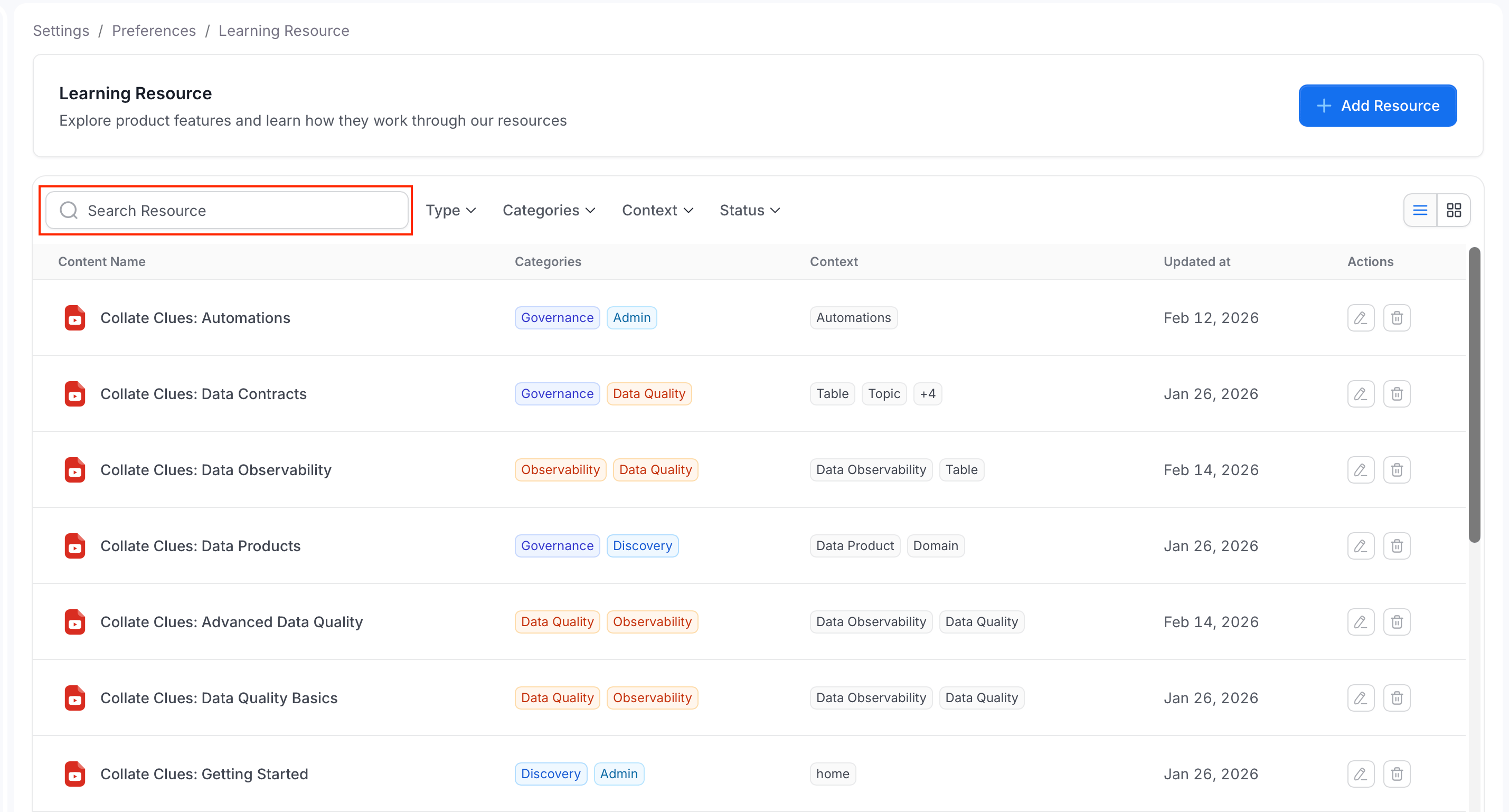
Use the **Search Resource** box to filter the list by name as you type.
4. Click **Save** to create the resource.
## View and Manage Resources
Use the search box, filters, and view toggle to work through the resource library, or edit and delete existing entries.
### Search
Use the **Search Resource** box to filter the list by name as you type.
 ### Filters
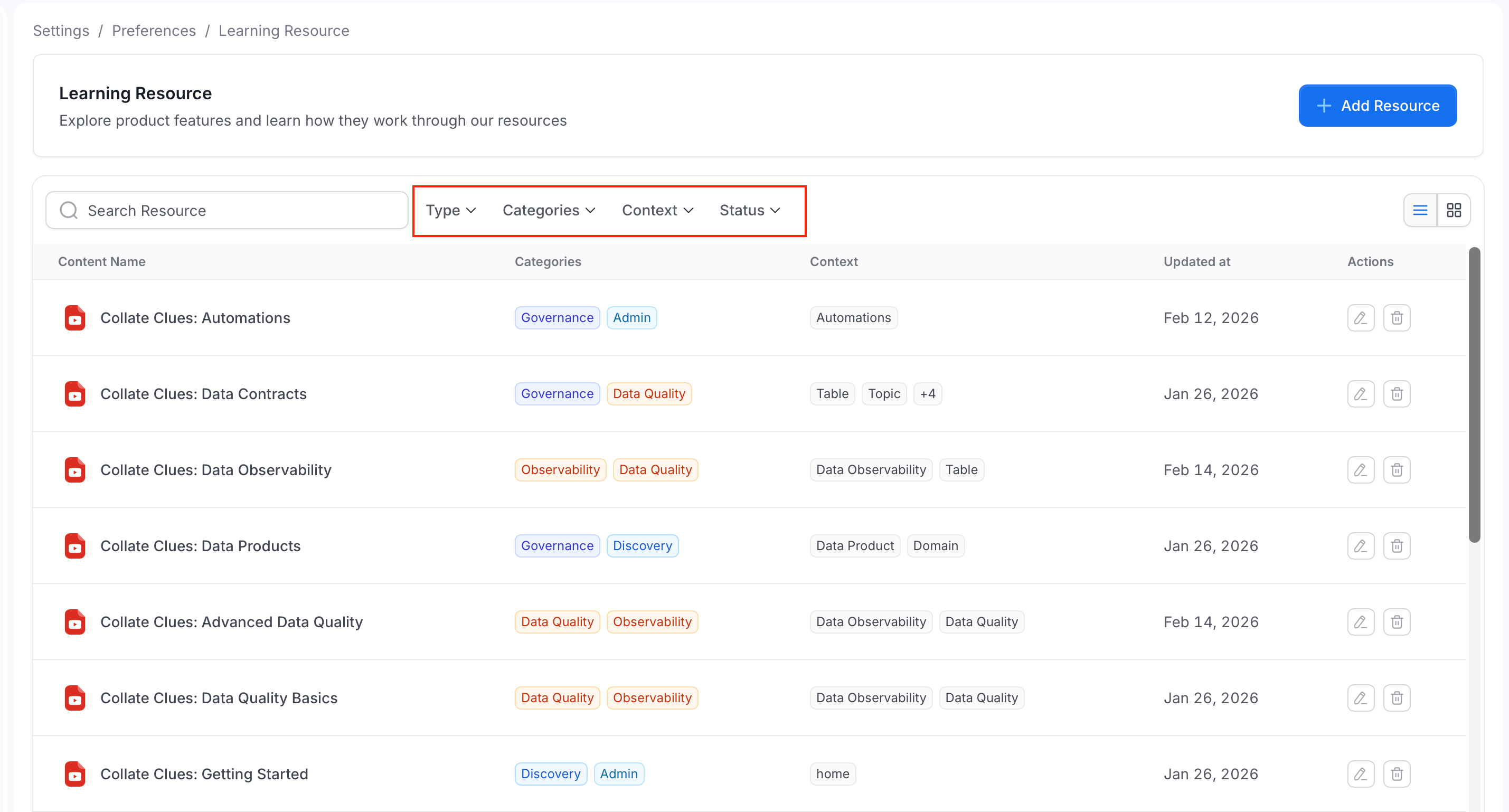
Use the filter dropdowns to narrow the list by:
* **Type**: Video or Storylane.
* **Categories**: One or more topic categories.
* **Context**: One or more product pages the resource is tagged for.
* **Status**: Active, Draft, or Deprecated.
Active filters appear as removable chips above the list. Click **Clear all** to reset every filter at once.
### Filters
Use the filter dropdowns to narrow the list by:
* **Type**: Video or Storylane.
* **Categories**: One or more topic categories.
* **Context**: One or more product pages the resource is tagged for.
* **Status**: Active, Draft, or Deprecated.
Active filters appear as removable chips above the list. Click **Clear all** to reset every filter at once.
 ### View Mode
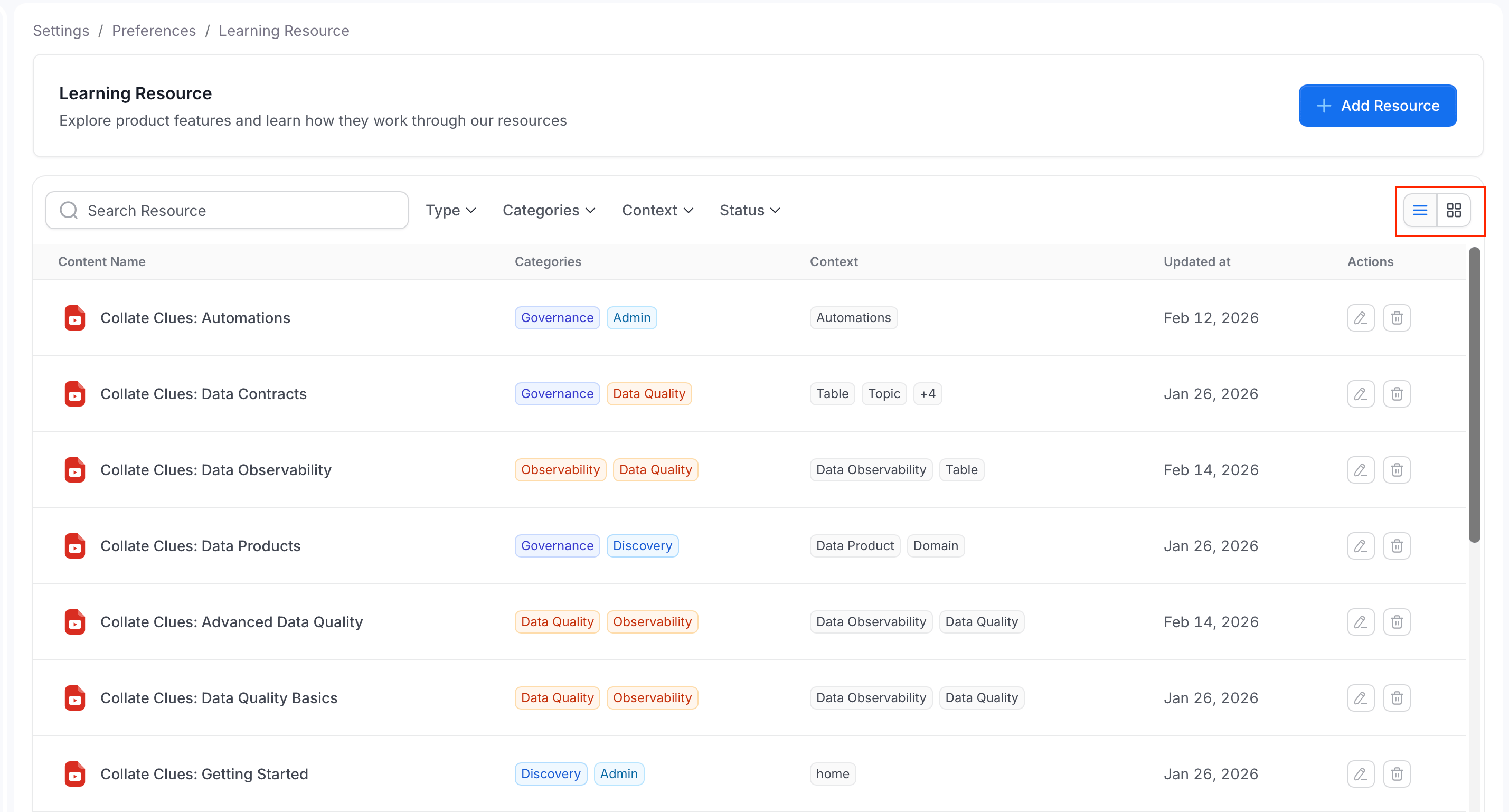
Use the view toggle in the top-right corner of the list to switch between:
* **Table view**: A compact list showing Content Name, Categories, Context, and when the resource was last updated.
* **Card view**: A grid of resource cards, useful for browsing visually.
Select a resource, in either view, to open a preview modal for its content, with a fullscreen option.
### View Mode
Use the view toggle in the top-right corner of the list to switch between:
* **Table view**: A compact list showing Content Name, Categories, Context, and when the resource was last updated.
* **Card view**: A grid of resource cards, useful for browsing visually.
Select a resource, in either view, to open a preview modal for its content, with a fullscreen option.
 ### Edit and Delete
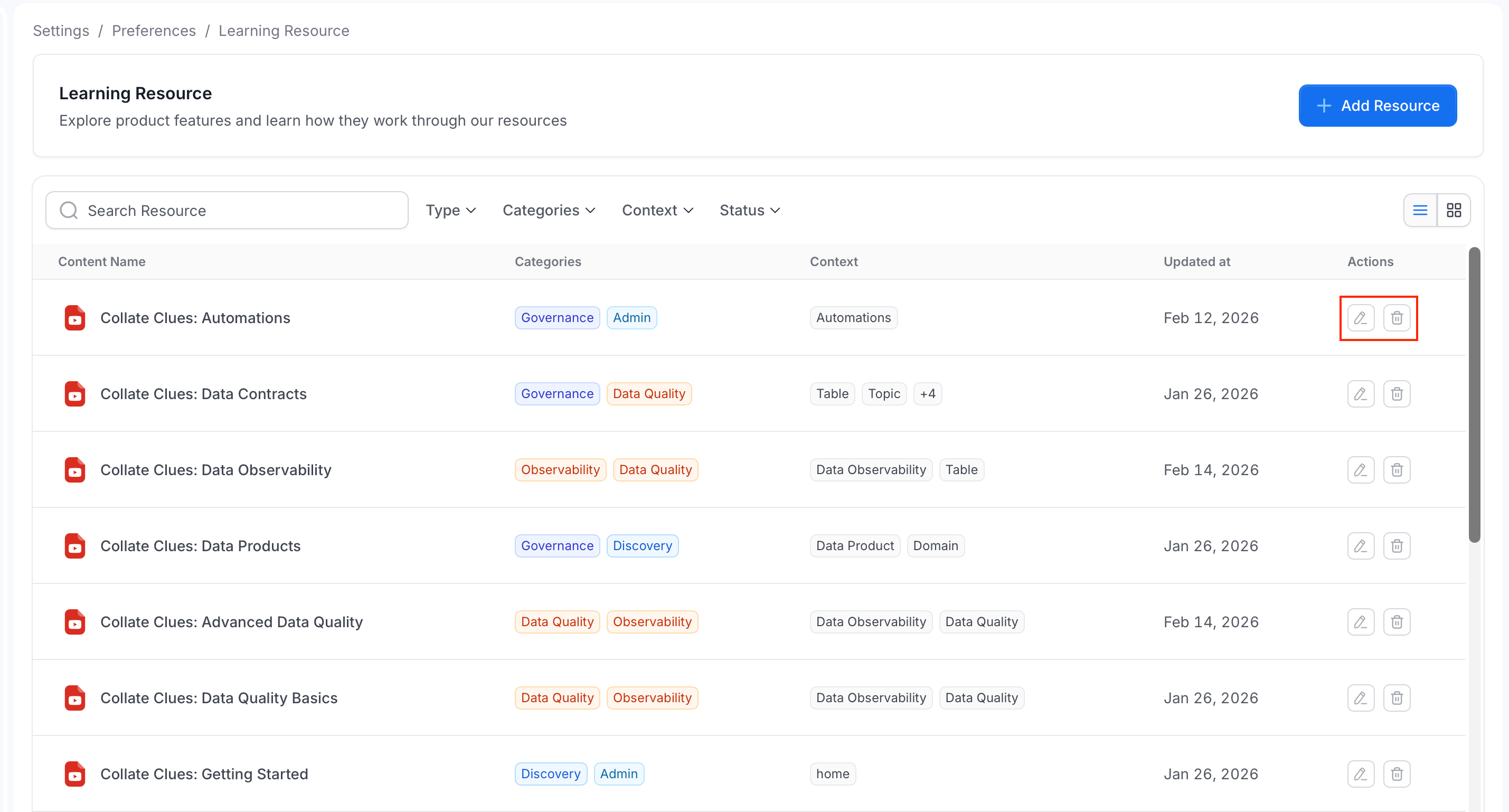
Use the icons in the **Action** column to edit or delete a resource:
* To edit a resource:
1. In the **Action** column, click the edit icon.
2. Modify the details. All fields are editable except **Name**.
* To delete a resource:
1. In the **Action** column, click the delete icon.
2. In the pop-up, click **Delete** to remove the resource from the active list. The default deletion is soft and can be restored. Permanent removal requires an API request with `hardDelete=true`.
### Edit and Delete
Use the icons in the **Action** column to edit or delete a resource:
* To edit a resource:
1. In the **Action** column, click the edit icon.
2. Modify the details. All fields are editable except **Name**.
* To delete a resource:
1. In the **Action** column, click the delete icon.
2. In the pop-up, click **Delete** to remove the resource from the active list. The default deletion is soft and can be restored. Permanent removal requires an API request with `hardDelete=true`.
 ## Where Learning Resources Appear
Beyond the admin list under **Settings** > **Preferences** > **Learning Resources**, **Active** resources also surface directly inside the product as contextual help. Pages that support this show a small learning icon in their header, for example on the Glossary, Domains, Data Products, Explore, Tags, Metrics, Test Suites, Governance Workflows, Automations, and Data Insights pages, among others.
## Where Learning Resources Appear
Beyond the admin list under **Settings** > **Preferences** > **Learning Resources**, **Active** resources also surface directly inside the product as contextual help. Pages that support this show a small learning icon in their header, for example on the Glossary, Domains, Data Products, Explore, Tags, Metrics, Test Suites, Governance Workflows, Automations, and Data Insights pages, among others.
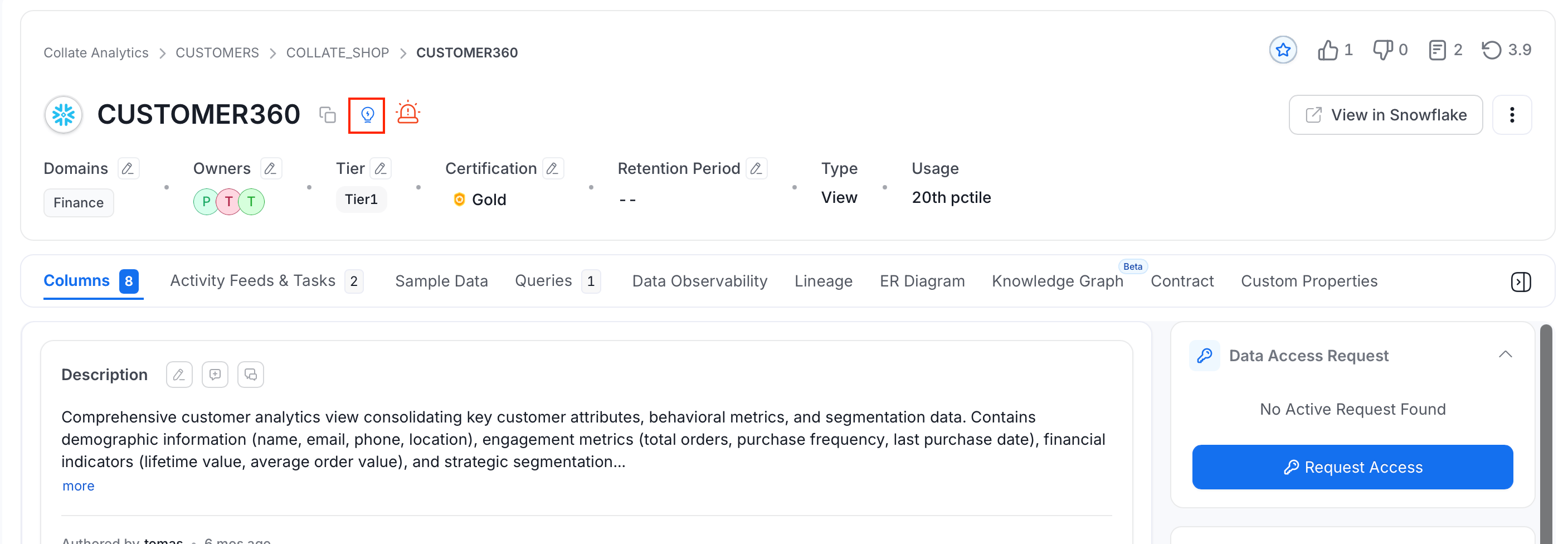 **To view the learning resources on the assets pages:**
1. Hover over the icon to see how many resources are available for that page.
**To view the learning resources on the assets pages:**
1. Hover over the icon to see how many resources are available for that page.
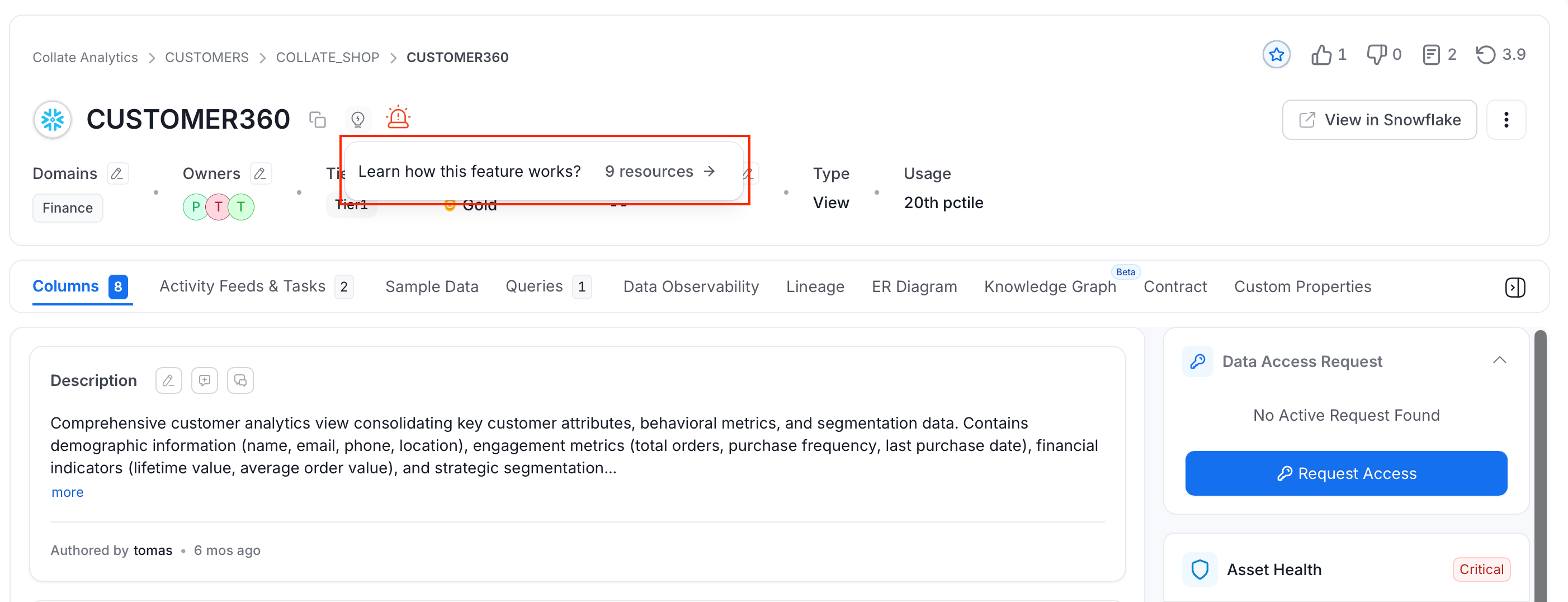 2. Select the icon to open a drawer listing up to 50 **Active** resources whose **Context** includes that page.
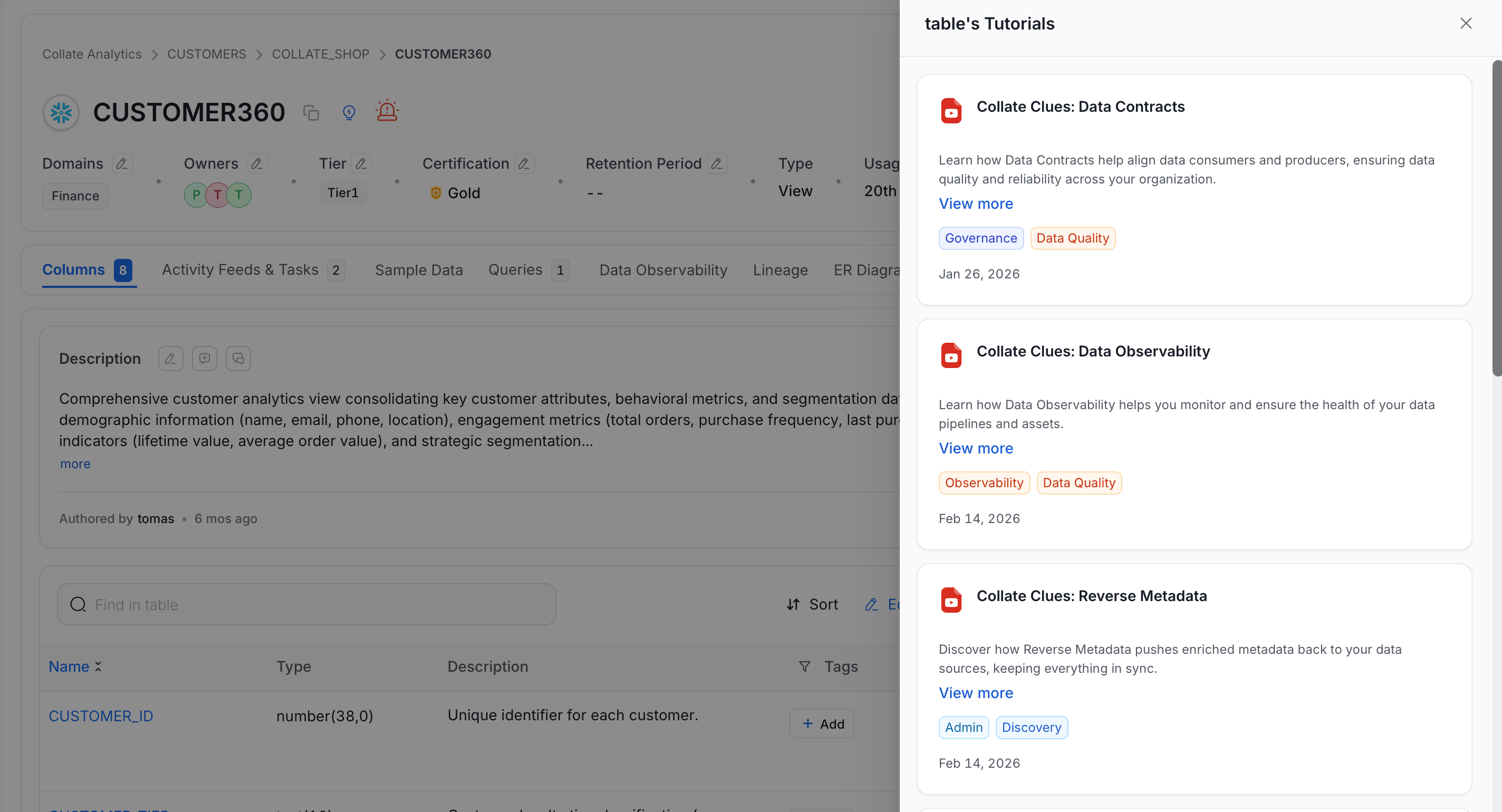 3. Click a resource in the drawer to view its content.
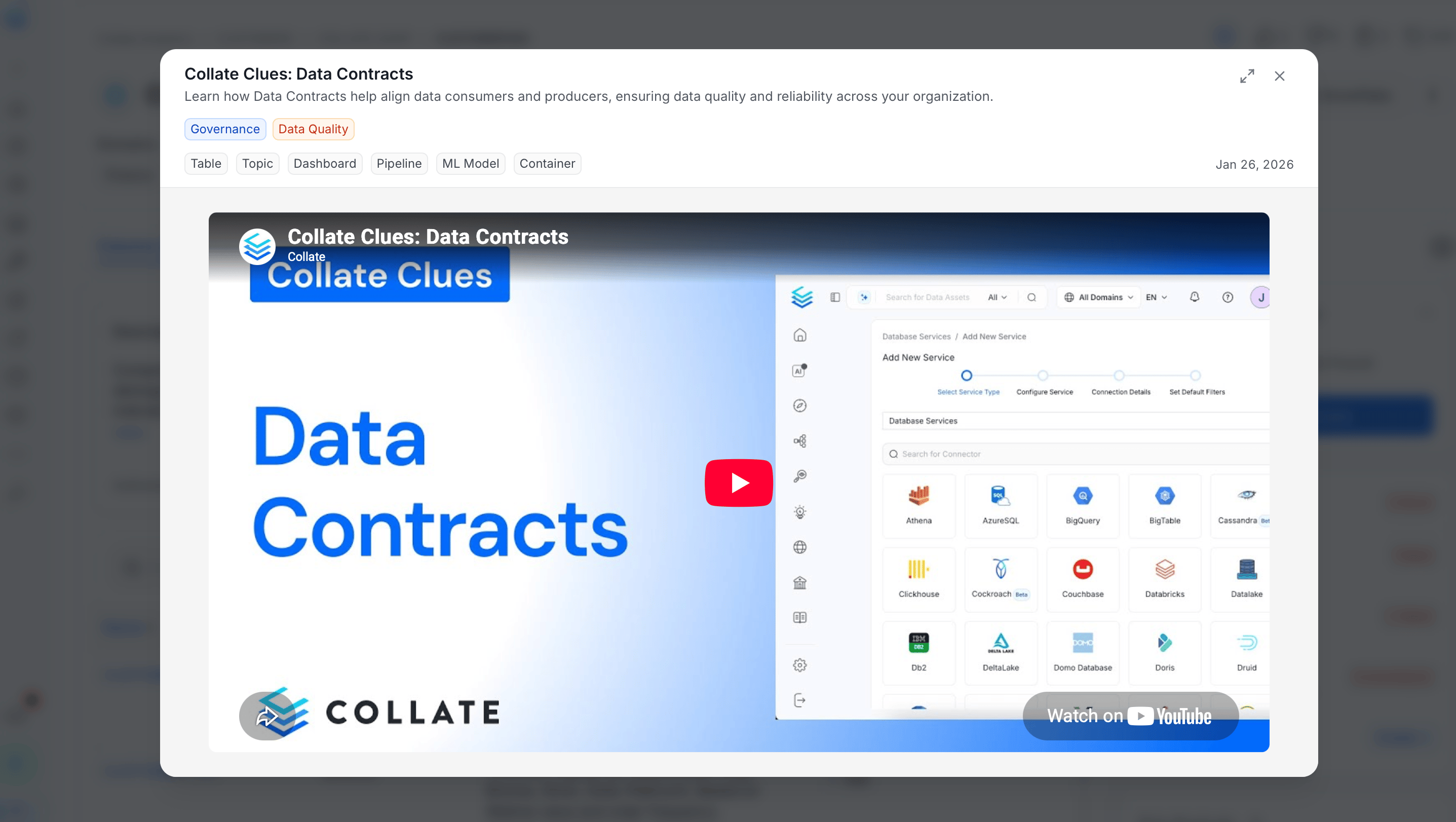 This is why **Context** is a required field when adding a resource: it determines which page(s) will show the resource in this contextual drawer, independent of where it appears in the admin list.
## Best Practices
* Keep resources scoped to the **Context** where they're actually useful, over-tagging a resource with unrelated contexts adds noise to those pages' help drawers.
* Use **Draft** status while preparing a resource so it doesn't appear to end users until it's ready, then switch it to **Active** to publish it.
* Prefer short, focused videos or Storylane tours over long ones, the contextual drawer is meant for quick, in-the-moment help.
This is why **Context** is a required field when adding a resource: it determines which page(s) will show the resource in this contextual drawer, independent of where it appears in the admin list.
## Best Practices
* Keep resources scoped to the **Context** where they're actually useful, over-tagging a resource with unrelated contexts adds noise to those pages' help drawers.
* Use **Draft** status while preparing a resource so it doesn't appear to end users until it's ready, then switch it to **Active** to publish it.
* Prefer short, focused videos or Storylane tours over long ones, the contextual drawer is meant for quick, in-the-moment help.