> ## Documentation Index
> Fetch the complete documentation index at: https://docs.getcollate.io/llms.txt
> Use this file to discover all available pages before exploring further.
# Configure SSO in the UI
> Reference guide for configuring Single Sign-On (SSO) in the Collate UI — covers Public and Confidential client types and all available settings.
# Configure SSO in the UI
Collate supports Single Sign-On (SSO) integration with various identity providers, enabling secure, centralized user authentication. SSO is configured from the Collate UI at **Settings** > **SSO**.
For provider-specific setup instructions (Okta, Azure AD, Auth0, Google, SAML, LDAP, and others), see the [SSO guides](/ai-2-0/how-to-guides/sso).
## Selecting a Provider
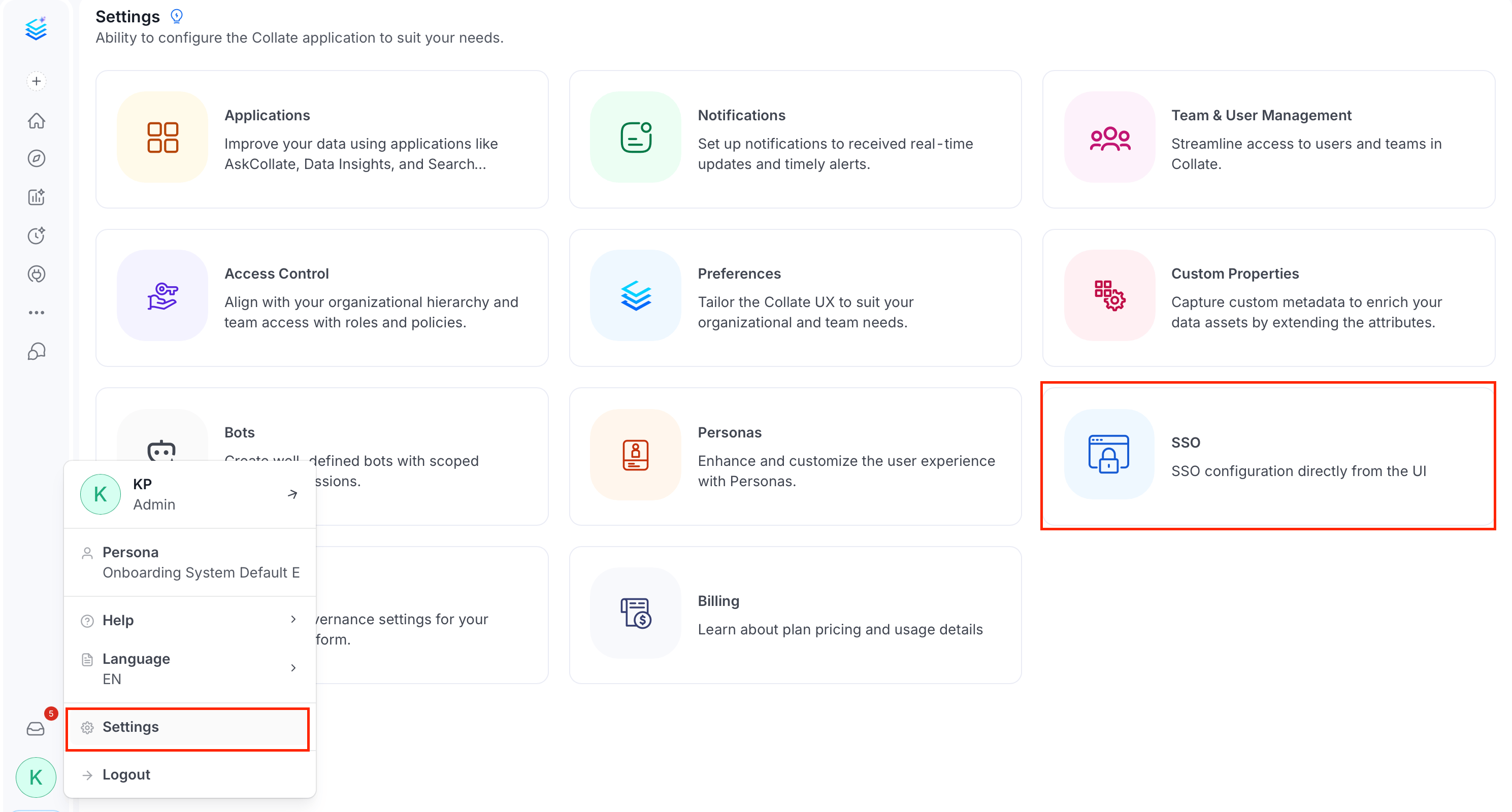
1. Select the **Profile** icon, and navigate to **Settings** > **SSO**.
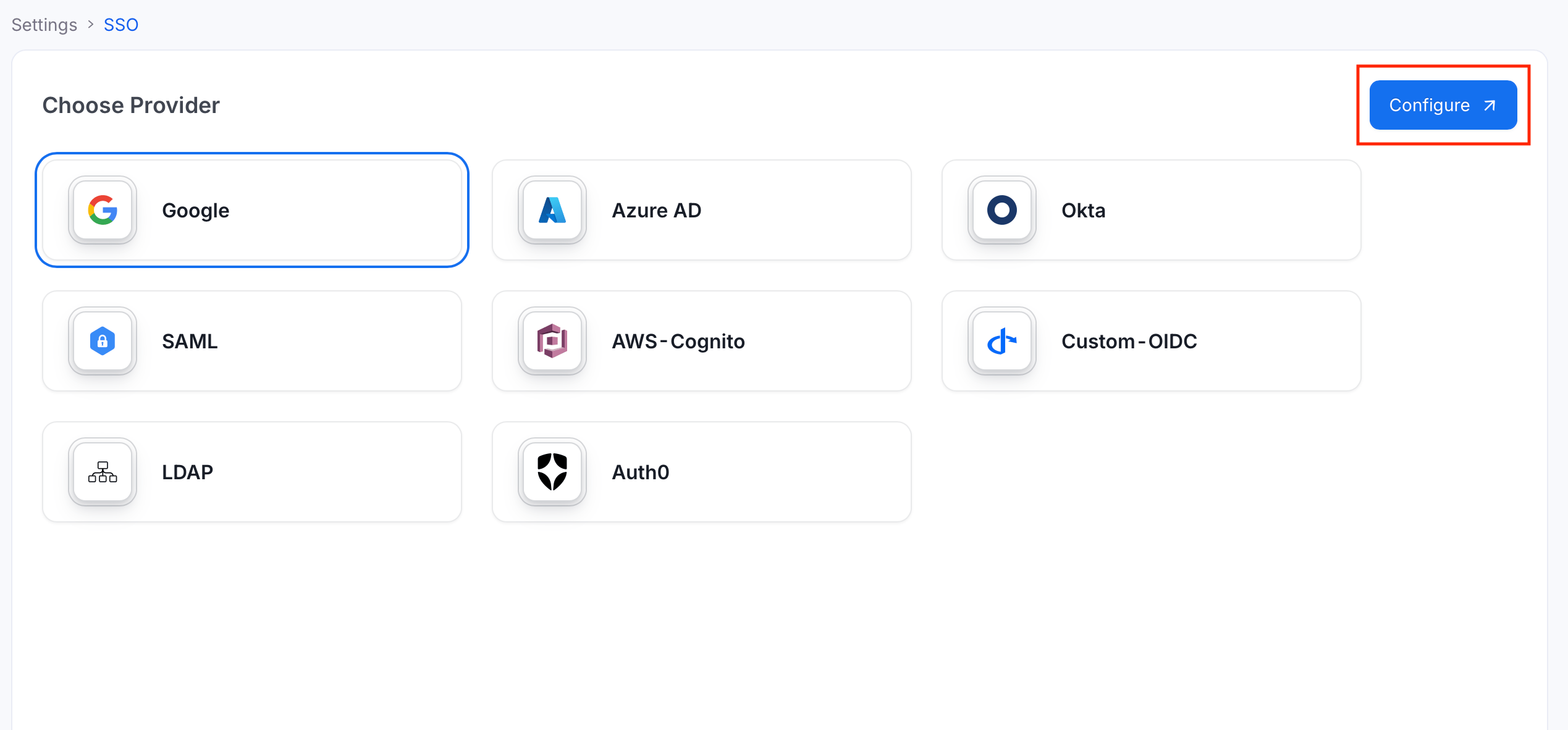
 2. Select your identity provider and click **Configure**.
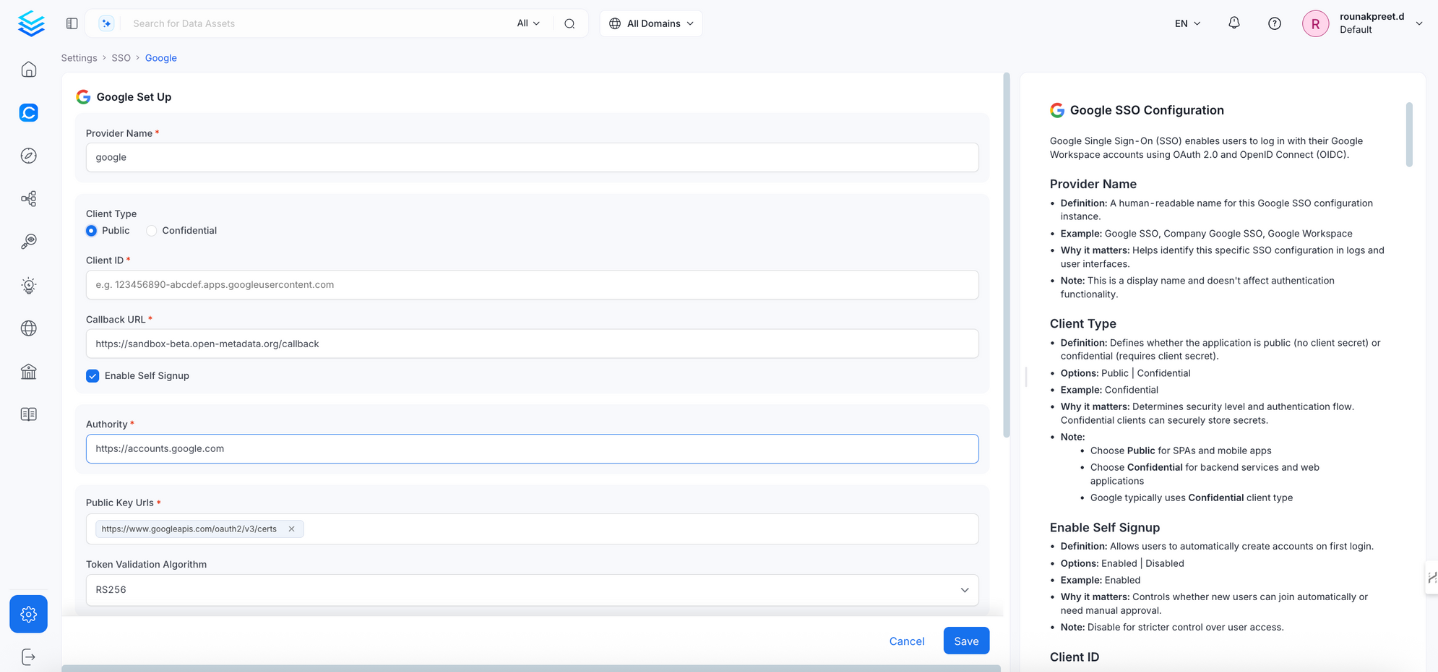
 3. Fill the configuration details and click **Save**.
For more information about how to configure each SSO provider, see [SSO Guides](/ai-2-0/how-to-guides/sso).
## Public Client Configuration
Use this configuration for **Single Page Applications (SPAs)** and **mobile apps**. It does not require a client secret.
3. Fill the configuration details and click **Save**.
For more information about how to configure each SSO provider, see [SSO Guides](/ai-2-0/how-to-guides/sso).
## Public Client Configuration
Use this configuration for **Single Page Applications (SPAs)** and **mobile apps**. It does not require a client secret.
 ### Provider Name
* A human-readable name for this SSO configuration instance.
* Example: `Okta SSO`, `Google Workspace`
* Used to identify this configuration in logs and the UI. Does not affect authentication behavior.
### Client Type
* **Options:** `Public` | `Confidential`
* Select `Public` for SPAs and mobile apps that cannot securely store a client secret.
### Callback URL
* The redirect URL where your identity provider sends authentication responses after login.
* This field is **read-only** — Collate auto-populates it as `{your-domain}/callback`.
* Copy this URL and register it as an authorized redirect URI in your identity provider's application settings.
* Always use **HTTPS** in production.
### Enable Self Signup
* **Options:** `Enabled` | `Disabled`
* When enabled, users who log in for the first time are automatically created in Collate.
* Disable for stricter access control where only pre-provisioned users can log in.
### Authority
* The OAuth 2.0 authorization server URL for your identity provider.
* Example: `https://accounts.google.com`, `https://your-org.okta.com`
* Specifies where Collate sends authentication requests.
### Public Key URLs
* One or more URLs where your identity provider publishes its JWT signing keys.
* Required to verify the signature of JWT tokens issued by the provider.
* Typically auto-discovered via the OIDC discovery endpoint.
### Token Validation Algorithm
* **Options:** `RS256` | `RS384` | `RS512`
* Must match the signing algorithm used by your identity provider.
* Most providers default to `RS256`.
### JWT Principal Claims
* The JWT fields used to identify the user in Collate. The first claim that returns a value is used.
* **Default:** `["email", "preferred_username", "sub"]`
* At least one claim must correspond to the user's email address.
**Important**: Incorrect claims will lock out all users including admins. The default values work for most configurations — only change if you have specific requirements.
### JWT Principal Claims Mapping
* Maps JWT token fields to Collate user profile attributes.
* Format: `collate_field:jwt_claim`
* Example: `["email:email", "username:preferred_username"]`
**Important**: Only `email` and `username` are valid mapping targets. Using any other key (for example, `name`, `firstName`, or `lastName`) will cause the service to fail on startup. This field is rarely needed — the default JWT Principal Claims handle user identification correctly for most configurations.
### JWT Team Claim Mapping
* The JWT claim containing team or group information for automatic team assignment in Collate.
* Example: `department`, `groups`
* The team must already exist in Collate for assignment to work. Only teams of type **Group** can be auto-assigned. Team names are case-sensitive.
### Admin Principals
* List of **usernames** (not email addresses) that receive admin access in Collate.
* Enter the part of the email before `@`. Example: for `admin@yourcompany.com`, enter `admin`.
* Example: `["admin", "superuser"]`
### Principal Domain
* The default email domain used to construct full user identifiers.
* Example: `yourcompany.com`
* Helps form complete user emails when the provider returns only a username.
### Enforce Principal Domain
* **Default:** `false`
* When enabled, only users whose email matches the configured domain can log in.
* Adds domain-level access control on top of the identity provider's own controls.
### Allowed Domains
* List of email domains permitted to authenticate with Collate.
* Example: `["yourcompany.com", "partner-company.com"]`
* Leave empty if you use a single domain configured in **Principal Domain**.
* Useful when you have multiple domains or want to allow specific external domains.
### Use Roles From Provider
* **Default:** `false`
* When enabled, roles returned by the identity provider in the token are used to assign Collate roles.
* Roles must be included in the token and must match existing Collate role names.
### Default OAuth Role
* The default role assigned to new users when they first sign in via SSO self-signup.
* Example: `DataConsumer`
* Leave empty to create users without any role. Requires **Enable Self Signup** to be active. The role must already exist in Collate.
### Enable Secure Socket Connection
* **Default:** `false`
* Enables SSL/TLS for secure token exchange and communication.
* Must be set to `true` in production environments.
## Confidential Client Configuration
Use this configuration for **web applications and backend services** that can securely store client credentials. Requires a client secret.
### Provider Name
* A human-readable name for this SSO configuration instance.
* Example: `Okta SSO`, `Google Workspace`
* Used to identify this configuration in logs and the UI. Does not affect authentication behavior.
### Client Type
* **Options:** `Public` | `Confidential`
* Select `Public` for SPAs and mobile apps that cannot securely store a client secret.
### Callback URL
* The redirect URL where your identity provider sends authentication responses after login.
* This field is **read-only** — Collate auto-populates it as `{your-domain}/callback`.
* Copy this URL and register it as an authorized redirect URI in your identity provider's application settings.
* Always use **HTTPS** in production.
### Enable Self Signup
* **Options:** `Enabled` | `Disabled`
* When enabled, users who log in for the first time are automatically created in Collate.
* Disable for stricter access control where only pre-provisioned users can log in.
### Authority
* The OAuth 2.0 authorization server URL for your identity provider.
* Example: `https://accounts.google.com`, `https://your-org.okta.com`
* Specifies where Collate sends authentication requests.
### Public Key URLs
* One or more URLs where your identity provider publishes its JWT signing keys.
* Required to verify the signature of JWT tokens issued by the provider.
* Typically auto-discovered via the OIDC discovery endpoint.
### Token Validation Algorithm
* **Options:** `RS256` | `RS384` | `RS512`
* Must match the signing algorithm used by your identity provider.
* Most providers default to `RS256`.
### JWT Principal Claims
* The JWT fields used to identify the user in Collate. The first claim that returns a value is used.
* **Default:** `["email", "preferred_username", "sub"]`
* At least one claim must correspond to the user's email address.
**Important**: Incorrect claims will lock out all users including admins. The default values work for most configurations — only change if you have specific requirements.
### JWT Principal Claims Mapping
* Maps JWT token fields to Collate user profile attributes.
* Format: `collate_field:jwt_claim`
* Example: `["email:email", "username:preferred_username"]`
**Important**: Only `email` and `username` are valid mapping targets. Using any other key (for example, `name`, `firstName`, or `lastName`) will cause the service to fail on startup. This field is rarely needed — the default JWT Principal Claims handle user identification correctly for most configurations.
### JWT Team Claim Mapping
* The JWT claim containing team or group information for automatic team assignment in Collate.
* Example: `department`, `groups`
* The team must already exist in Collate for assignment to work. Only teams of type **Group** can be auto-assigned. Team names are case-sensitive.
### Admin Principals
* List of **usernames** (not email addresses) that receive admin access in Collate.
* Enter the part of the email before `@`. Example: for `admin@yourcompany.com`, enter `admin`.
* Example: `["admin", "superuser"]`
### Principal Domain
* The default email domain used to construct full user identifiers.
* Example: `yourcompany.com`
* Helps form complete user emails when the provider returns only a username.
### Enforce Principal Domain
* **Default:** `false`
* When enabled, only users whose email matches the configured domain can log in.
* Adds domain-level access control on top of the identity provider's own controls.
### Allowed Domains
* List of email domains permitted to authenticate with Collate.
* Example: `["yourcompany.com", "partner-company.com"]`
* Leave empty if you use a single domain configured in **Principal Domain**.
* Useful when you have multiple domains or want to allow specific external domains.
### Use Roles From Provider
* **Default:** `false`
* When enabled, roles returned by the identity provider in the token are used to assign Collate roles.
* Roles must be included in the token and must match existing Collate role names.
### Default OAuth Role
* The default role assigned to new users when they first sign in via SSO self-signup.
* Example: `DataConsumer`
* Leave empty to create users without any role. Requires **Enable Self Signup** to be active. The role must already exist in Collate.
### Enable Secure Socket Connection
* **Default:** `false`
* Enables SSL/TLS for secure token exchange and communication.
* Must be set to `true` in production environments.
## Confidential Client Configuration
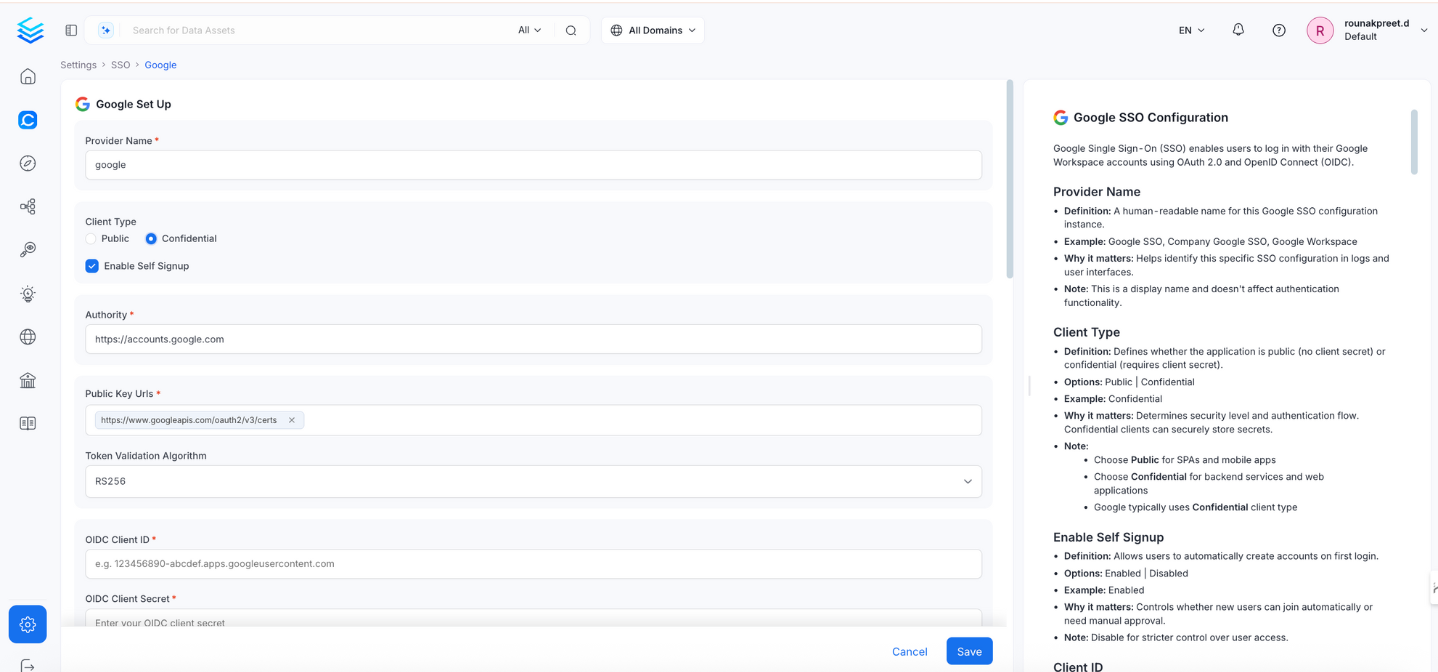
Use this configuration for **web applications and backend services** that can securely store client credentials. Requires a client secret.
 ### Provider Name
* Same as the Public configuration above.
### Client Type
* **Options:** `Public` | `Confidential`
* Select `Confidential` for backend services and web applications that can securely store a client secret.
### Enable Self Signup
* Same as the Public configuration above.
### Authority
* Same as the Public configuration above.
### OIDC Client ID
* The OAuth 2.0 Client ID issued by your identity provider.
* Found in your identity provider's application or credential settings.
### OIDC Client Secret
* The confidential key used to authenticate Collate with your identity provider during token exchange.
* Store securely and rotate periodically.
### OIDC Request Scopes
* The permissions requested from the identity provider during login.
* **Default:** `openid email profile`
* Determines what user information is accessible after login.
### OIDC Discovery URI
* The OIDC metadata URL for your identity provider.
* Example: `https://your-idp.com/.well-known/openid-configuration`
* Enables Collate to auto-discover provider endpoints.
### OIDC Callback URL
* This field is **read-only** — Collate auto-populates it as `{your-domain}/callback`.
* Copy this URL and register it as an authorized redirect URI in your identity provider's application settings.
### OIDC Prompt
* **Options:** `none` | `login` | `consent` | `select_account`
* Controls what the identity provider displays during login:
* `login`: Always prompt for credentials.
* `consent`: Ask the user for permission each time.
* `select_account`: Display an account picker.
* `none`: Attempt silent login — fails if the user is not already authenticated.
### OIDC Custom Parameters
* Additional parameters to include in OIDC authentication requests.
* Example: `{"hd": "yourcompany.com", "prompt": "select_account"}`
* Common uses:
* `hd`: Restrict login to a specific hosted domain (Google Workspace).
* `login_hint`: Pre-fill the email address field.
### Advanced Configuration
The following fields are available under **Advanced Config** in the UI (collapsed by default):
#### OIDC Use Nonce
* **Default:** `false`
* Adds a nonce to the authentication request to prevent replay attacks.
#### OIDC Preferred JWS Algorithm
* **Default:** `RS256`
* Must match the token signing algorithm used by your identity provider.
#### OIDC Response Type
* **Options:** `id_token` | `code`
* **Default:** `code`
* Use `code` (authorization code flow) for better security.
#### OIDC Disable PKCE
* **Default:** `false`
* Proof Key for Code Exchange (PKCE) adds protection to the authorization code flow.
* Keep this set to `false` unless your provider does not support PKCE.
#### OIDC Max Clock Skew
* Allowed time difference (in seconds) between Collate's clock and the identity provider's clock.
* **Default:** `0`
* Increase if token validation fails due to minor clock drift between systems.
#### OIDC Client Authentication Method
* **Options:** `client_secret_basic` | `client_secret_post` | `client_secret_jwt` | `private_key_jwt`
* **Default:** `client_secret_basic`
* Defines how the client secret is passed to the identity provider during token requests.
#### OIDC Token Validity
* How long (in seconds) a token is valid.
* **Default:** `0` (use the identity provider's default)
#### OIDC Max Age
* Maximum age (in seconds) of an authentication before re-authentication is required.
* Example: `3600` (1 hour)
#### OIDC Session Expiry
* How long (in seconds) a user session remains active.
* **Default:** `604800` (7 days)
### JWT Principal Claims
* Same as the Public configuration above.
### JWT Principal Claims Mapping
* Same as the Public configuration above.
### JWT Team Claim Mapping
* Same as the Public configuration above.
### Admin Principals
* Same as the Public configuration above.
### Principal Domain
* Same as the Public configuration above.
### Enforce Principal Domain
* Same as the Public configuration above.
### Allowed Domains
* Same as the Public configuration above.
### Use Roles From Provider
* Same as the Public configuration above.
### Default OAuth Role
* Same as the Public configuration above.
### Enable Secure Socket Connection
* Same as the Public configuration above.
### Provider Name
* Same as the Public configuration above.
### Client Type
* **Options:** `Public` | `Confidential`
* Select `Confidential` for backend services and web applications that can securely store a client secret.
### Enable Self Signup
* Same as the Public configuration above.
### Authority
* Same as the Public configuration above.
### OIDC Client ID
* The OAuth 2.0 Client ID issued by your identity provider.
* Found in your identity provider's application or credential settings.
### OIDC Client Secret
* The confidential key used to authenticate Collate with your identity provider during token exchange.
* Store securely and rotate periodically.
### OIDC Request Scopes
* The permissions requested from the identity provider during login.
* **Default:** `openid email profile`
* Determines what user information is accessible after login.
### OIDC Discovery URI
* The OIDC metadata URL for your identity provider.
* Example: `https://your-idp.com/.well-known/openid-configuration`
* Enables Collate to auto-discover provider endpoints.
### OIDC Callback URL
* This field is **read-only** — Collate auto-populates it as `{your-domain}/callback`.
* Copy this URL and register it as an authorized redirect URI in your identity provider's application settings.
### OIDC Prompt
* **Options:** `none` | `login` | `consent` | `select_account`
* Controls what the identity provider displays during login:
* `login`: Always prompt for credentials.
* `consent`: Ask the user for permission each time.
* `select_account`: Display an account picker.
* `none`: Attempt silent login — fails if the user is not already authenticated.
### OIDC Custom Parameters
* Additional parameters to include in OIDC authentication requests.
* Example: `{"hd": "yourcompany.com", "prompt": "select_account"}`
* Common uses:
* `hd`: Restrict login to a specific hosted domain (Google Workspace).
* `login_hint`: Pre-fill the email address field.
### Advanced Configuration
The following fields are available under **Advanced Config** in the UI (collapsed by default):
#### OIDC Use Nonce
* **Default:** `false`
* Adds a nonce to the authentication request to prevent replay attacks.
#### OIDC Preferred JWS Algorithm
* **Default:** `RS256`
* Must match the token signing algorithm used by your identity provider.
#### OIDC Response Type
* **Options:** `id_token` | `code`
* **Default:** `code`
* Use `code` (authorization code flow) for better security.
#### OIDC Disable PKCE
* **Default:** `false`
* Proof Key for Code Exchange (PKCE) adds protection to the authorization code flow.
* Keep this set to `false` unless your provider does not support PKCE.
#### OIDC Max Clock Skew
* Allowed time difference (in seconds) between Collate's clock and the identity provider's clock.
* **Default:** `0`
* Increase if token validation fails due to minor clock drift between systems.
#### OIDC Client Authentication Method
* **Options:** `client_secret_basic` | `client_secret_post` | `client_secret_jwt` | `private_key_jwt`
* **Default:** `client_secret_basic`
* Defines how the client secret is passed to the identity provider during token requests.
#### OIDC Token Validity
* How long (in seconds) a token is valid.
* **Default:** `0` (use the identity provider's default)
#### OIDC Max Age
* Maximum age (in seconds) of an authentication before re-authentication is required.
* Example: `3600` (1 hour)
#### OIDC Session Expiry
* How long (in seconds) a user session remains active.
* **Default:** `604800` (7 days)
### JWT Principal Claims
* Same as the Public configuration above.
### JWT Principal Claims Mapping
* Same as the Public configuration above.
### JWT Team Claim Mapping
* Same as the Public configuration above.
### Admin Principals
* Same as the Public configuration above.
### Principal Domain
* Same as the Public configuration above.
### Enforce Principal Domain
* Same as the Public configuration above.
### Allowed Domains
* Same as the Public configuration above.
### Use Roles From Provider
* Same as the Public configuration above.
### Default OAuth Role
* Same as the Public configuration above.
### Enable Secure Socket Connection
* Same as the Public configuration above.